
How to Generate PDF Documents from Airtable Using CraftMyPDF
 By Jacky Tan Updated May 11, 2026
This tutorial shows you how to generate PDF documents from Airtable using the CraftMyPDF Airtable extension. You will prepare your Airtable base, add the CraftMyPDF extension, design a reusable PDF invoice template, and generate PDF documents directly from selected Airtable records.
TL;DR
This tutorial shows you how to generate PDF documents from Airtable using the CraftMyPDF Airtable extension. You will prepare your Airtable base, add the CraftMyPDF extension, design a reusable PDF invoice template, and generate PDF documents directly from selected Airtable records.
Introduction
Airtable is a flexible way to manage invoice data, customers, orders, and line items. But when you need to turn those records into polished PDF invoices, manually copying data into a document can quickly become repetitive.
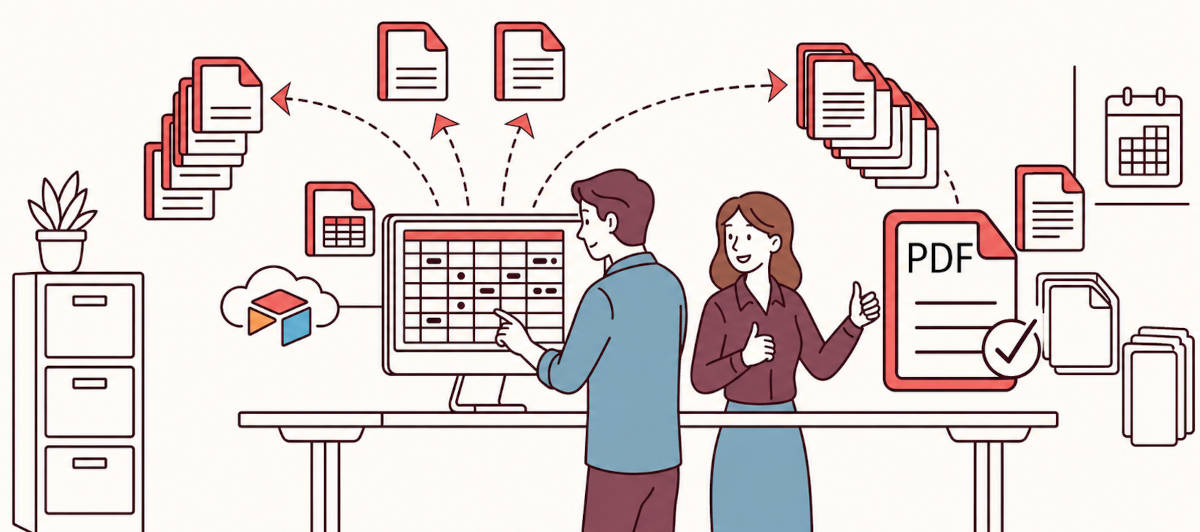
With CraftMyPDF, you can automate this workflow. You can create a reusable PDF template, connect it with your Airtable records, and generate PDF documents directly from Airtable.
In this guide, we will walk through how to generate PDF documents from Airtable using the CraftMyPDF extension. The workflow is simple: prepare your Airtable base, install the extension, design your PDF template, and generate PDF invoices back into an Airtable attachment field.
If you are new to CraftMyPDF, it is a document automation platform with a drag-and-drop PDF template editor and a PDF Generation API for creating dynamic PDFs from reusable templates and data.
Video Walkthrough
Prefer to watch instead of read? You can follow along with the full video tutorial below:
Watch on YouTube: How to Generate PDF Invoices from Airtable Using CraftMyPDF
What You Will Build
In this tutorial, Airtable stores the invoice data, while CraftMyPDF handles the PDF design and generation.
You will create a workflow that can:
- Store invoice records and line items in Airtable
- Generate sample JSON data from Airtable
- Design a reusable invoice template in CraftMyPDF
- Map Airtable fields into the PDF invoice design
- Generate PDF invoices from selected Airtable records
- Save the generated PDFs back into an Airtable attachment field
This setup works well for invoices, quotations, receipts, contracts, reports, certificates, purchase orders, delivery notes, and other business documents. For layout ideas, you can also browse CraftMyPDF’s invoice PDF templates and PDF template gallery.
Prerequisites
Before you start, make sure you have:
- An Airtable base with invoice data
- A CraftMyPDF account
- The CraftMyPDF Airtable extension installed in Airtable
- Your CraftMyPDF API key
- An Airtable attachment field to store the generated PDFs
You can also explore CraftMyPDF’s integration documentation if you want to connect CraftMyPDF with other tools such as Zapier, Make.com, Bubble, n8n, or the REST API later.
Step 1. Prepare Your Airtable Base
Before generating PDF documents, start by preparing your Airtable structure. A clean Airtable setup makes it easier to map data into your PDF template later.
For this example, the Airtable base contains two main tables:
- A main invoice table for customer and invoice details
- A related invoice items table for line items
The main invoice table stores information such as the invoice number, customer name, invoice date, due date, subtotal, tax, and total amount. The invoice items table stores the product or service name, quantity, unit price, and line total.
You should link each invoice record to its related invoice items using an Airtable linked record field. This allows the CraftMyPDF extension to include multiple line items in the generated PDF invoice.
You should also create an attachment field, such as Result. This is where the generated PDF invoice will be saved after the workflow runs.
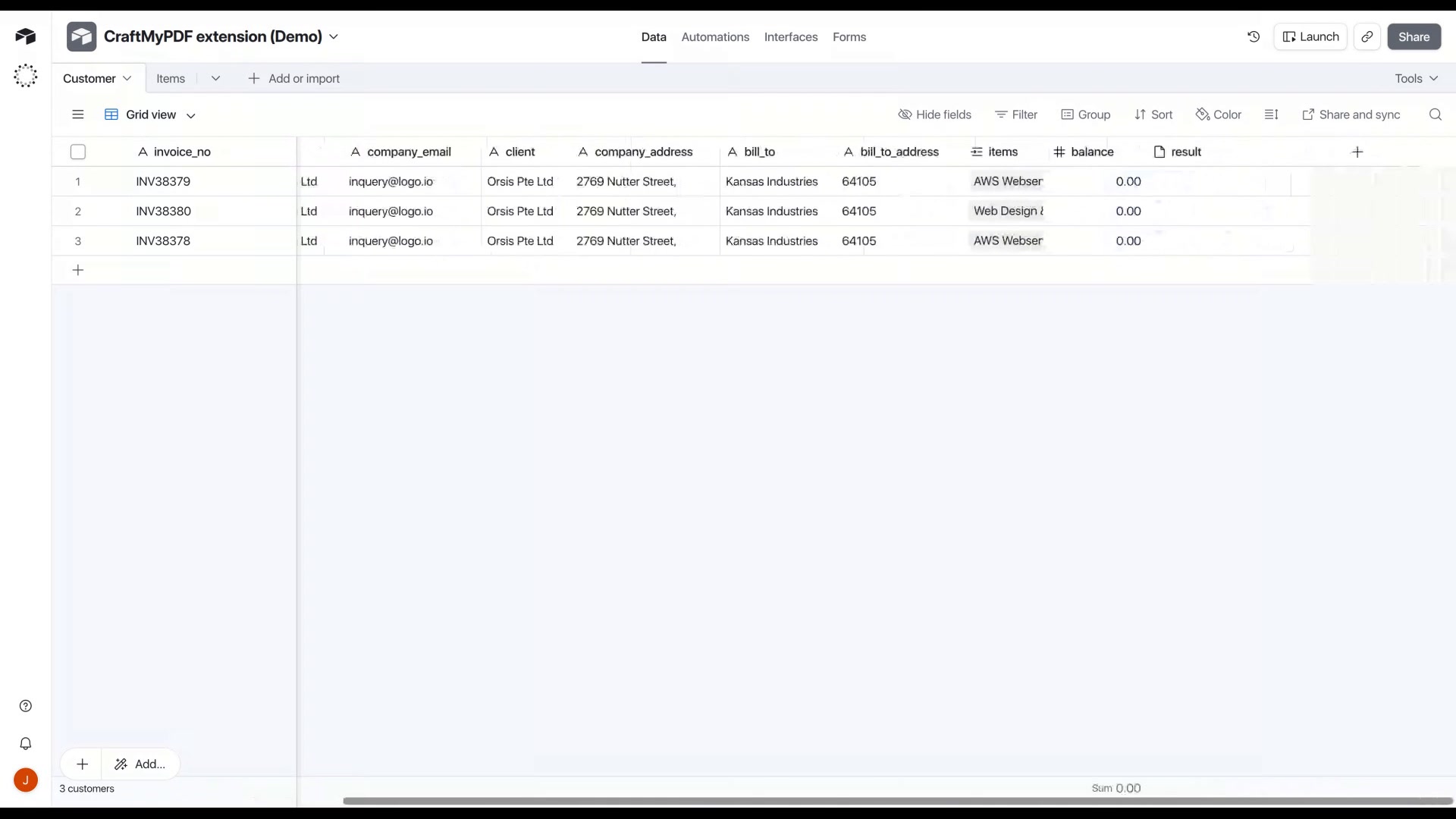
Recommended Airtable fields:
| Field | Purpose |
|---|---|
| Invoice Number | Unique invoice reference |
| Customer Name | Name of the customer or client |
| Invoice Date | Date of the invoice |
| Due Date | Payment due date |
| Invoice Items | Linked records for invoice line items |
| Result | Attachment field for the generated PDF |
Step 2. Add CraftMyPDF Extension
Next, install the CraftMyPDF extension in your Airtable base.
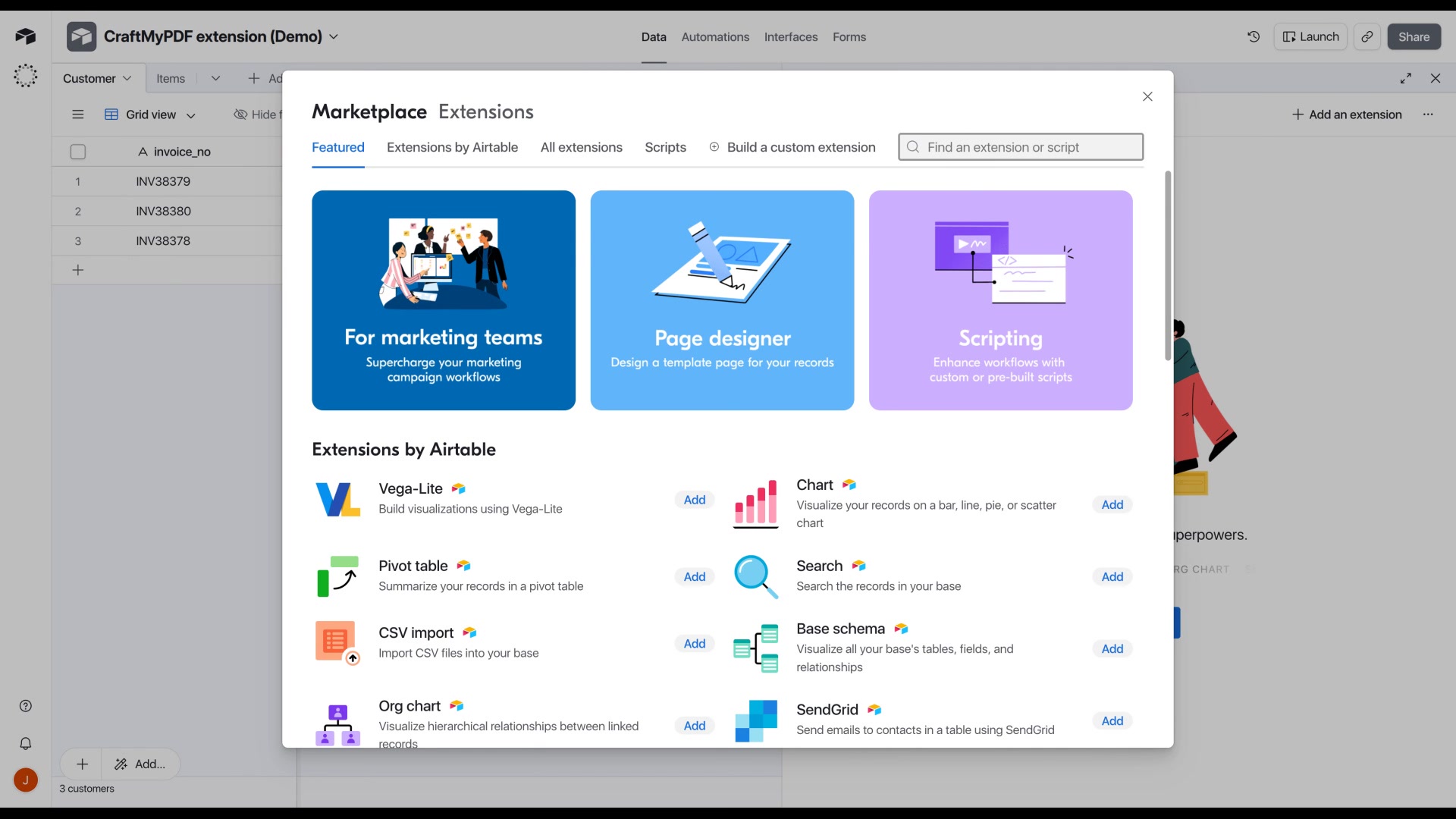
In Airtable, click Tools, go to Extensions, and select Add an extension. This opens the Airtable Marketplace. Search for CraftMyPDF, select the CraftMyPDF extension, and click Add extension.
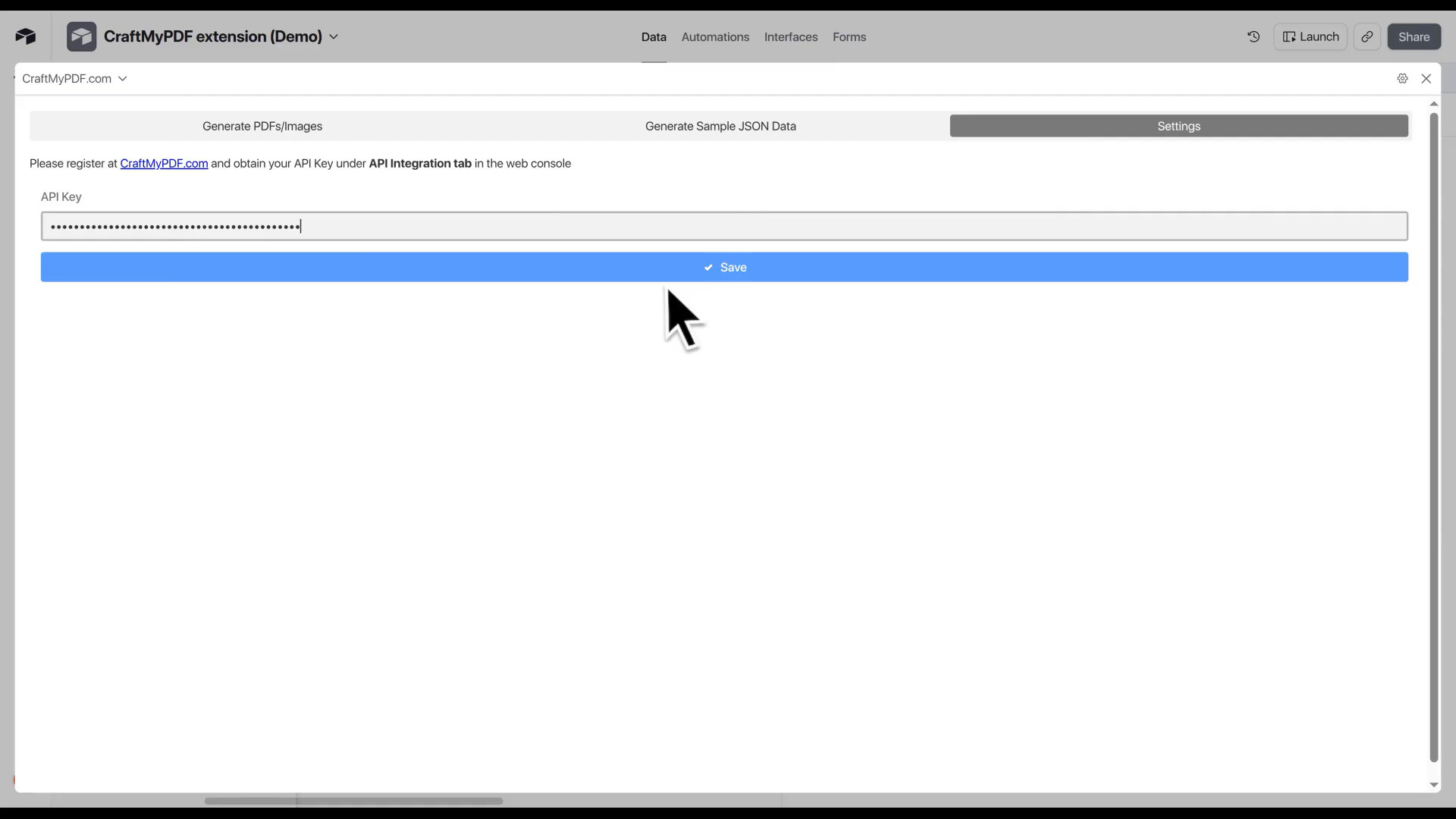
After the extension is added, open the Settings tab inside the CraftMyPDF extension. Paste your CraftMyPDF API key into the API key field and click Save.
You can find your API key in your CraftMyPDF account under the API integration page. Once the API key is saved, Airtable can send record data to CraftMyPDF for PDF generation.
After connecting your account, generate sample JSON data from Airtable. In the CraftMyPDF extension, click Generate Sample JSON Data, select an Airtable row, and click Generate Sample Data.
The extension will generate sample JSON based on the selected Airtable record. Press Ctrl + A to select all the JSON, then press Ctrl + C to copy it.
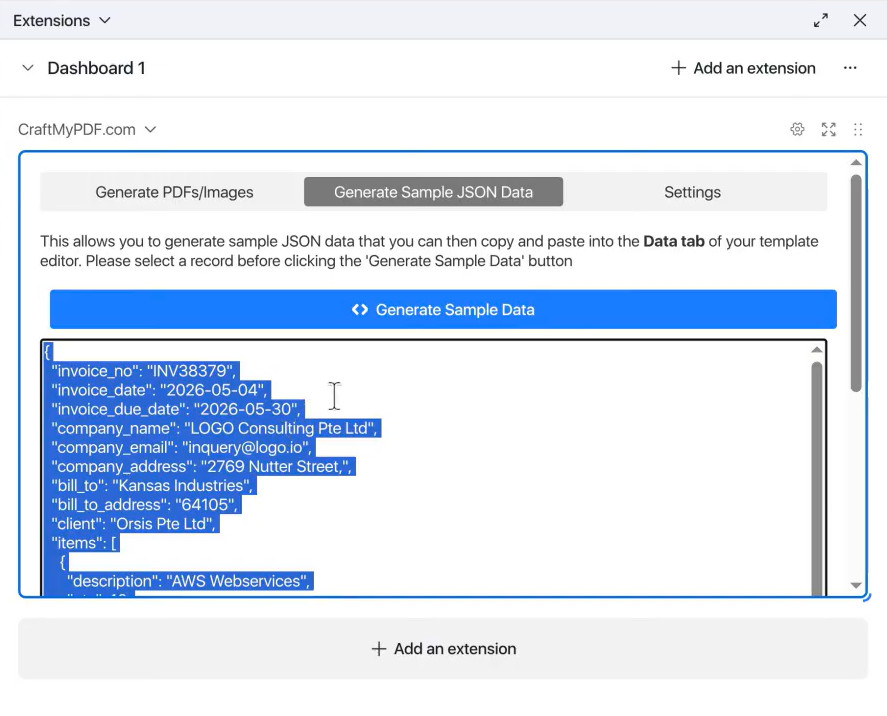
This JSON is important because it tells CraftMyPDF what data fields are available from Airtable. You will use it in the next step when designing the PDF template.
CraftMyPDF can also be used with other automation tools. For example, you can generate PDFs with Zapier, automate PDF generation with Make.com, or build custom workflows using the REST API.
Step 3. Design your PDF template on CraftMyPDF
Now go to your CraftMyPDF dashboard and create a reusable PDF invoice template.
Click Create New Template. For this tutorial, you can start with an existing invoice template instead of designing everything from scratch. This gives you a ready-made layout with sections for invoice details, line items, totals, and payment information.
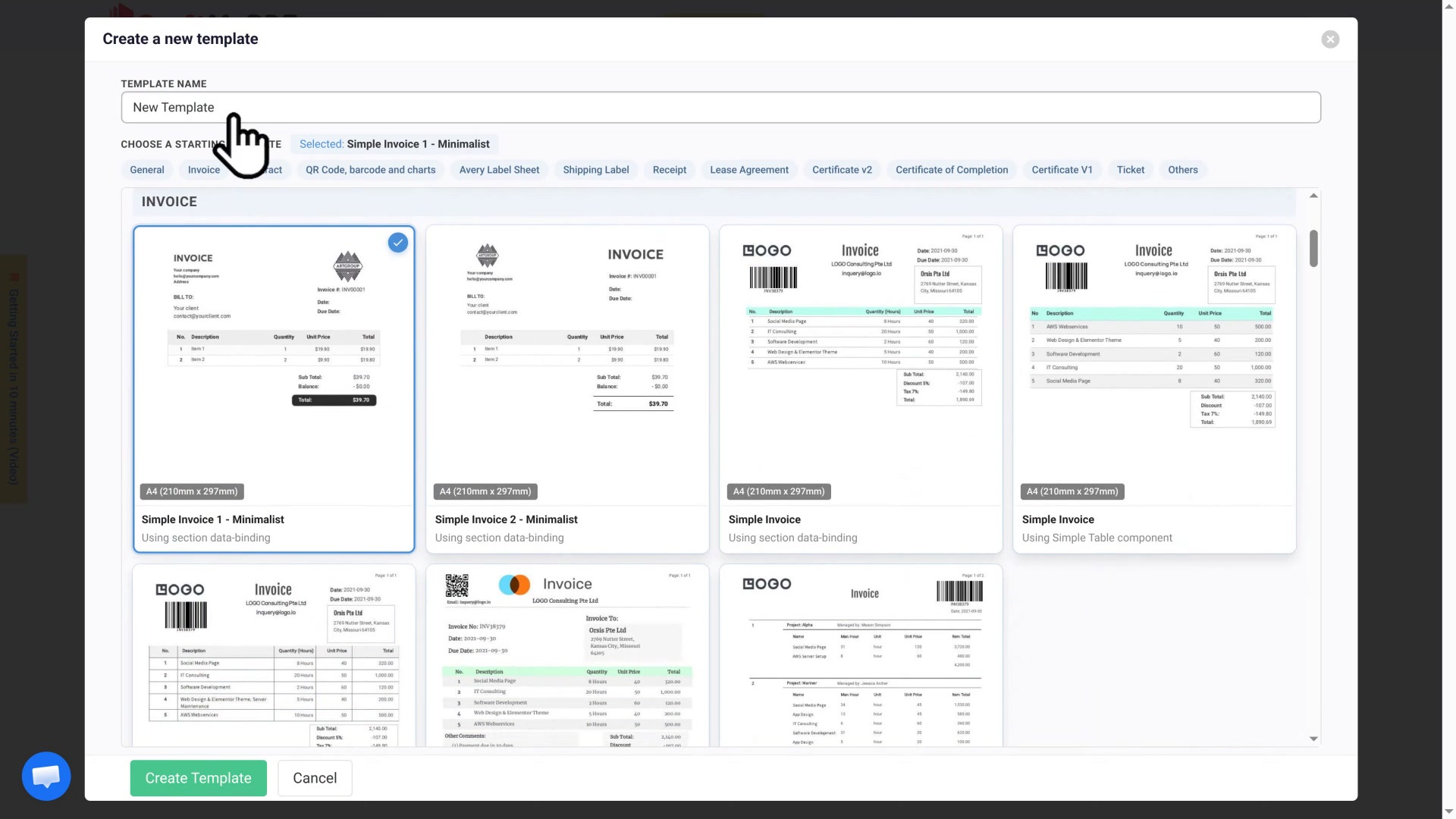
After creating the template, open it in the CraftMyPDF template editor. The editor lets you design PDF documents visually and bind dynamic data to text, tables, images, and other components.
Inside the editor, go to the Data tab. Replace the existing sample data with the JSON copied from Airtable.
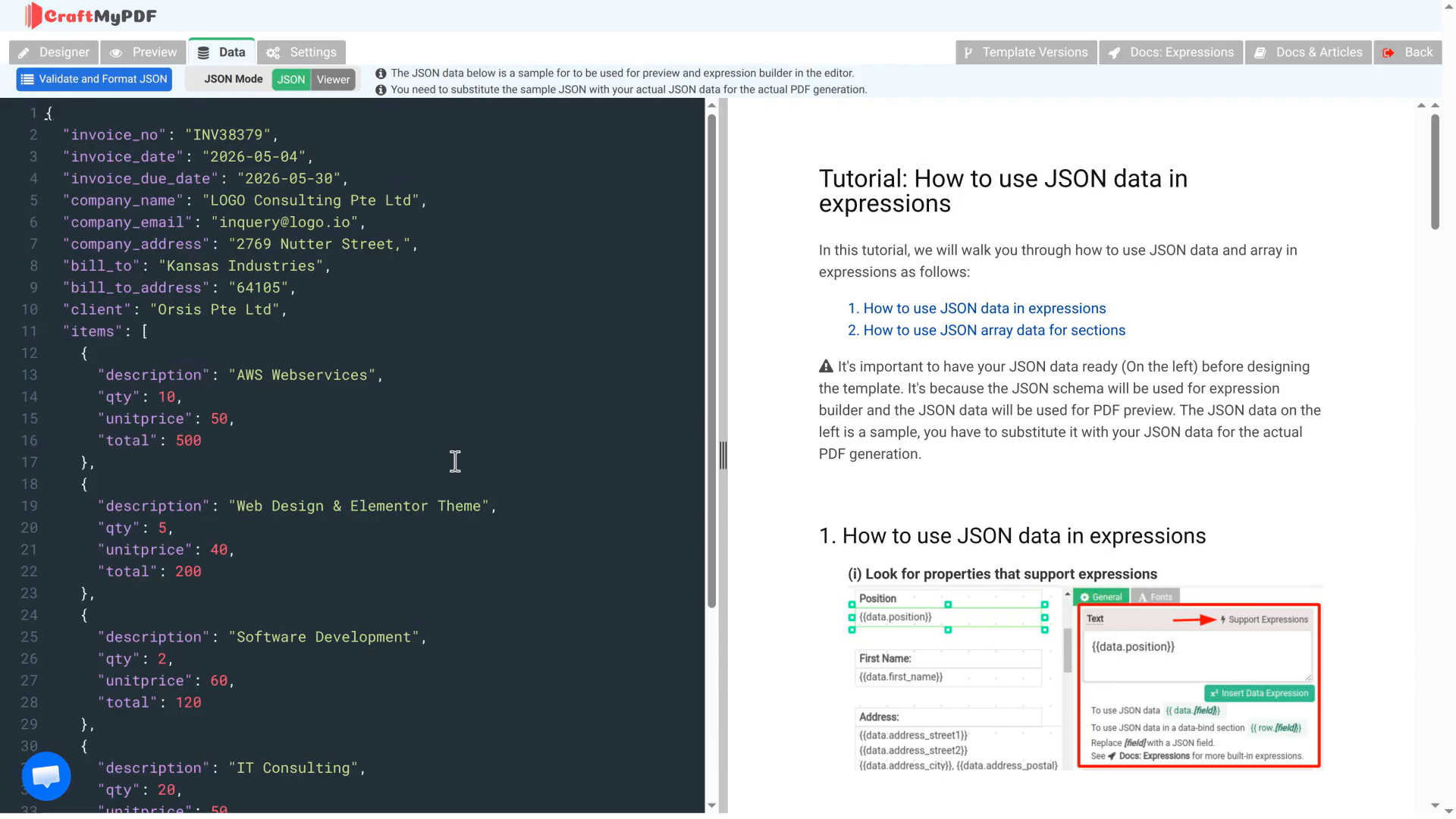
Once the JSON is added, your Airtable fields become available in the Data Fields panel. You can drag and drop fields into the invoice design, such as invoice number, customer details, invoice date, due date, and line items.
If your Airtable field names match the sample invoice template fields, most of the mapping may already be done. In that case, you only need to make small adjustments, such as placing the invoice number in the header or updating labels.
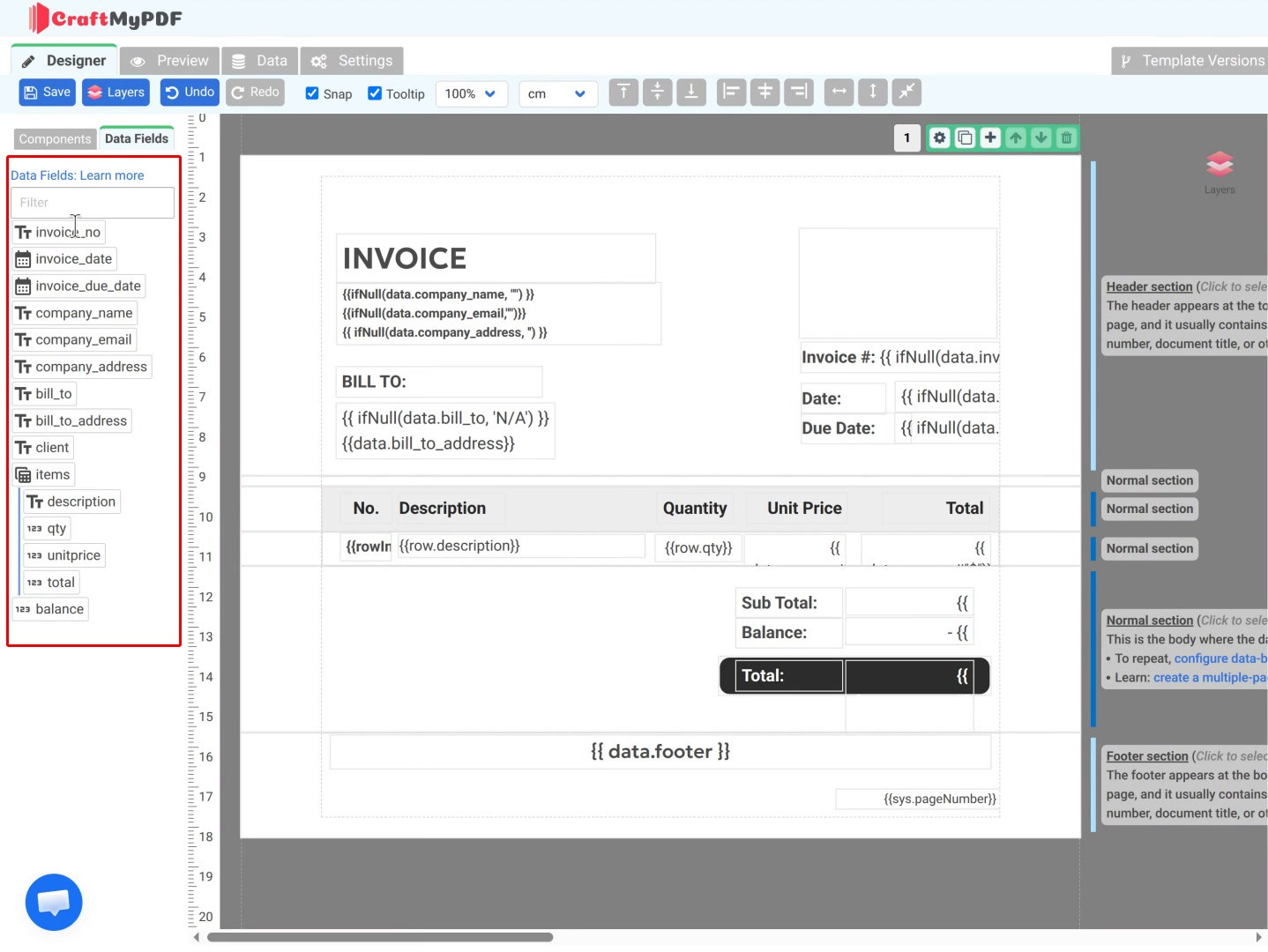
You can customize the invoice layout directly in the editor, including fonts, labels, table columns, spacing, images, and branding. To learn more about the visual editor, see CraftMyPDF’s PDF template editor and PDF builder pages.
When the template is ready, click Preview to generate a sample PDF. Check the invoice number, customer details, line items, totals, and any other dynamic fields.
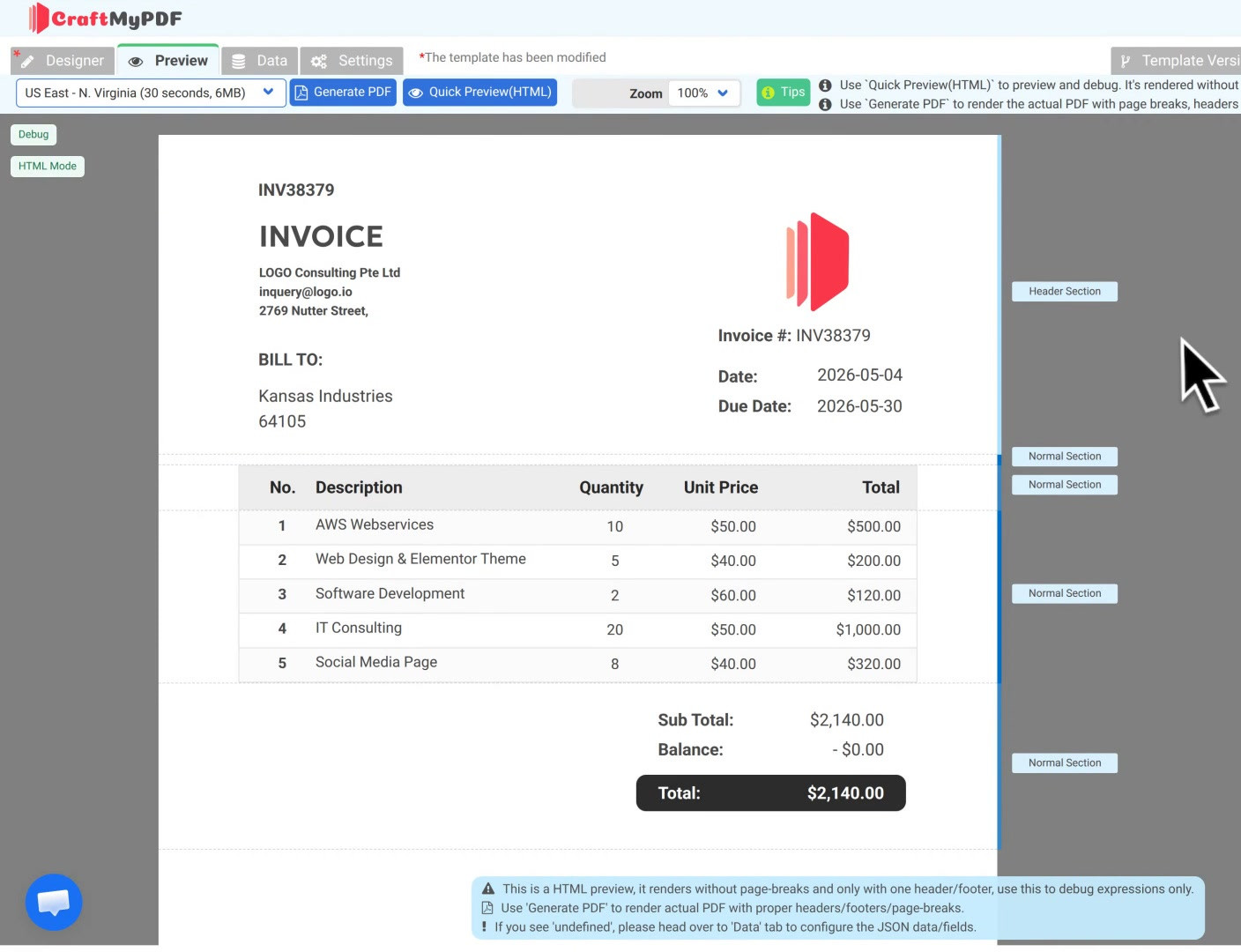
Once everything looks correct, return to the designer and click Save.
Step 4. Generate PDF documents with CraftMyPDF extension
After saving your PDF template, go back to Airtable and open the CraftMyPDF extension again.
In the Generate PDFs tab, select the CraftMyPDF template you created. Then choose the Airtable view that contains the records you want to generate PDFs for.
Next, choose the Airtable attachment field where the generated PDF files should be saved. In this example, the generated PDFs are saved into the Result attachment field.
Select the records you want to generate PDFs for, then click Generate.
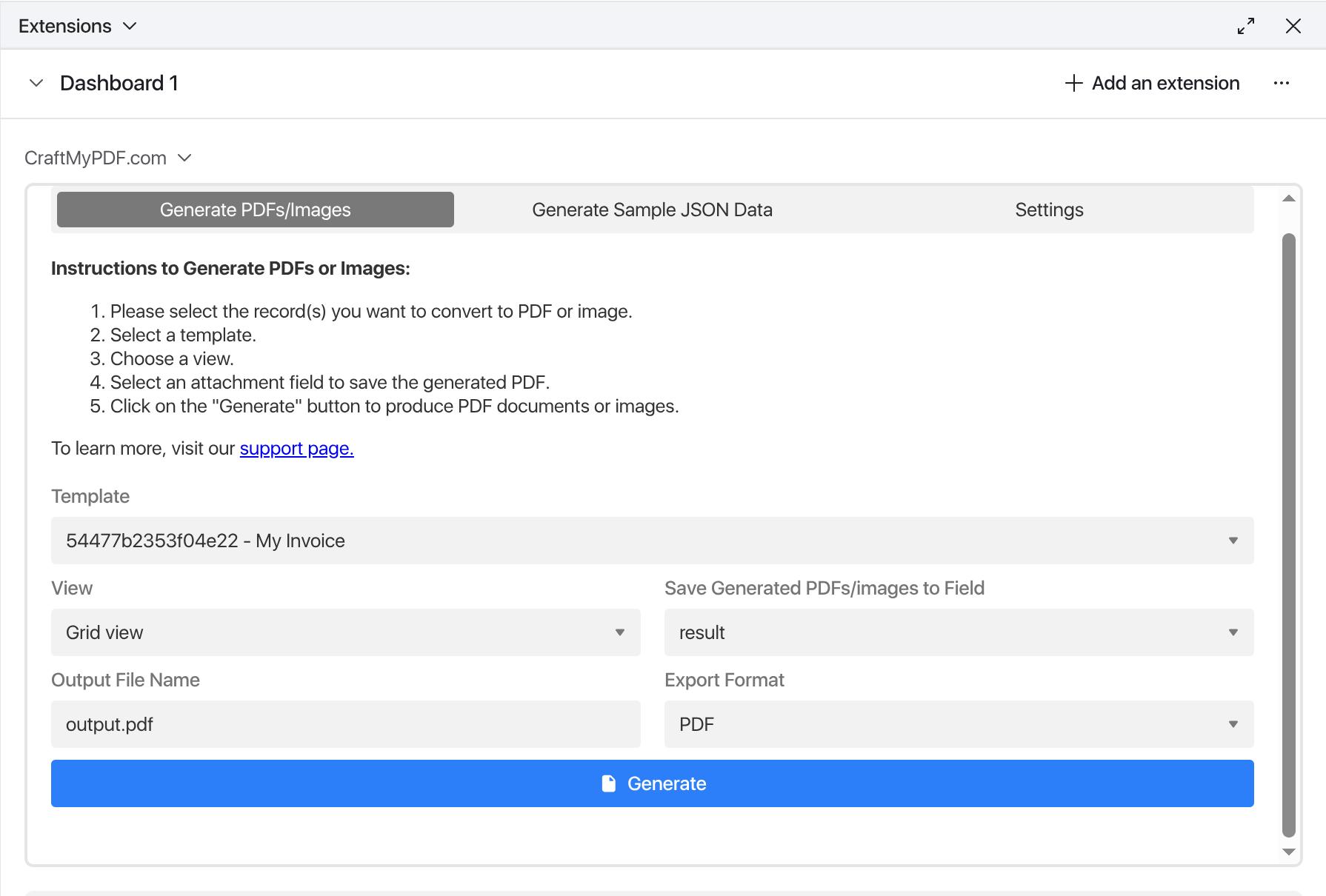
CraftMyPDF will generate the PDF invoices and automatically save the files back into the selected Airtable attachment field.
After the generation process is complete, you will see the generated PDF file in Airtable. You can open the attachment to review the final invoice.
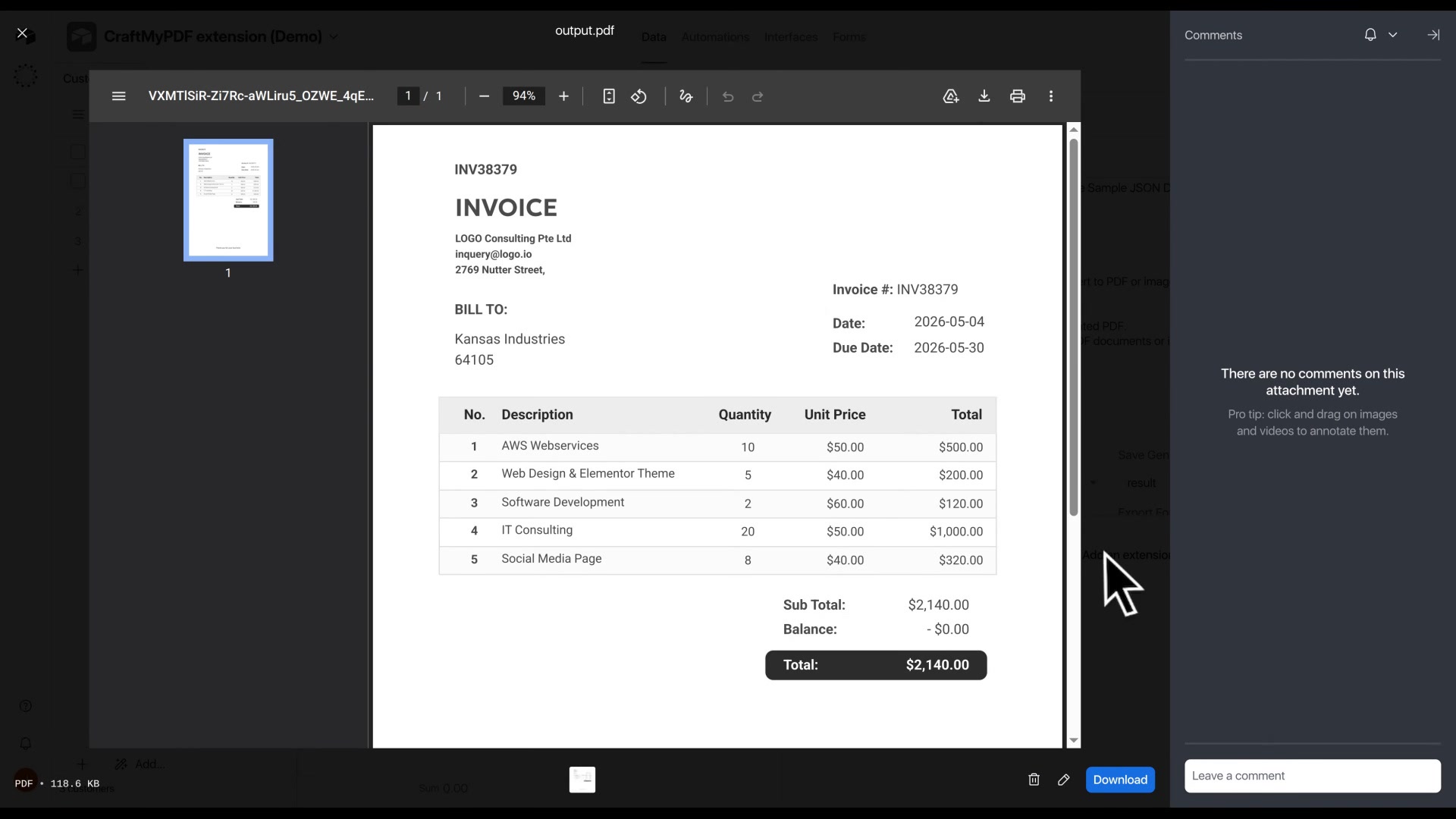
That’s it. You have connected Airtable with CraftMyPDF, created a reusable invoice template, and generated PDF documents from selected Airtable records.
Why Use CraftMyPDF for Airtable PDF Generation?
CraftMyPDF is designed for dynamic PDF generation from structured data. Instead of manually formatting invoices, you can create reusable templates and populate them with Airtable records.
- No manual copy and paste: Once your template is set up, Airtable records can be turned into PDF invoices without manually copying customer details, invoice numbers, or line items into a document.
- Reusable PDF templates: You only need to design the invoice template once. The same template can be reused for every invoice, customer, or order.
- Works with linked records: If your invoice has multiple line items, CraftMyPDF can use structured JSON data from Airtable to populate dynamic tables inside the PDF.
- Saves PDFs back to Airtable: Generated PDFs can be saved directly into an Airtable attachment field, keeping your invoice data and PDF documents in one place.
- Suitable for more than invoices: The same workflow can be used for contracts, reports, certificates, quotations, purchase orders, delivery notes, and other business documents. For another Airtable workflow, you can read this guide on how to automatically create PDF event passes with Airtable.
If you are comparing different ways to generate PDFs from Airtable, you may also find this comparison useful: CraftMyPDF vs Airtable Page Designer.
CraftMyPDF vs Airtable Page Designer
If you have used Airtable for a while, you may already know about the built-in Page Designer extension. It is convenient for printing simple single-record layouts, but it was not built for full PDF document automation. Here is how the two compare so you can decide which one fits your workflow.
When Airtable Page Designer is enough
Airtable Page Designer is a reasonable choice if:
- You only need to print or export one record at a time
- Your document fits cleanly on a single page
- You do not need automation, API access, or batch generation
- You are happy to manually click Print and Save as PDF
- You only need basic fixed layouts such as a business card, simple certificate, or one-page summary
Where Airtable Page Designer falls short
For invoices, contracts, reports, and any workflow that needs scale or automation, Page Designer has several well-known limitations:
- Single-page design only: Page Designer is built for one-page layouts and does not properly support page breaks, so multi-page invoices or reports often render as one long, unsplittable page.
- No batch generation: You can only print one record at a time. There is no built-in way to generate PDFs for many records in one go.
- No automation or API access: Page Designer cannot be triggered from Airtable Automations or any external API, so PDFs cannot be created and stored automatically.
- Manual PDF export: To get a PDF, you have to click Print, choose Save as PDF, then upload the file back into an attachment field by hand.
- Weak support for linked records and dynamic tables: Repeating line items from related tables, such as invoice items, are difficult to lay out cleanly.
- Limited customization: Layouts are fixed and harder to match to detailed brand guidelines or complex document designs.
When to use CraftMyPDF instead
CraftMyPDF is purpose-built for dynamic PDF generation from structured data, which directly addresses the gaps above:
- Reusable PDF templates: Design your invoice or document template once in the drag-and-drop editor, then reuse it for every customer, record, or order.
- Dynamic tables and linked records: Line items from related Airtable tables are rendered as proper dynamic tables inside the PDF, with as many rows as the record needs.
- Multi-page documents: Long invoices, contracts, and reports support proper page breaks, repeating headers, and footers.
- Batch and automated generation: Generate PDFs for many selected records at once from the Airtable extension, or automate generation through Zapier, Make.com, n8n, Bubble, or the REST API.
- Saved back to Airtable: Generated PDFs are written directly into an Airtable attachment field, so your data and documents stay in one place.
- Full design control: Customize fonts, colors, branding, tables, images, and overall layout in the visual editor.
In short, Airtable Page Designer is fine for occasional, manual, one-off layouts, while CraftMyPDF is the better choice when you need reusable templates, dynamic data, multi-page documents, automation, and PDFs saved back into Airtable. For a deeper feature-by-feature breakdown, see the CraftMyPDF vs Airtable Page Designer comparison.
Want More Flexibility? Use the Airtable Scripting Extension
The CraftMyPDF Airtable extension shown in this tutorial is the easiest no-code way to generate PDFs from Airtable records. But if you are comfortable writing a bit of JavaScript, you can get even more control by pairing Airtable’s built-in Scripting extension with the CraftMyPDF API.
This code-based approach is a good fit when you want to:
- Trigger PDF generation from a custom button field in Airtable
- Pre-process or reshape Airtable data before sending it to CraftMyPDF
- Combine data from multiple tables, or apply conditional logic, before generating a PDF
- Integrate PDF generation tightly with your existing Airtable scripts or automations
- Build more advanced workflows than the no-code extension allows
It does require some coding skills, but in return you get a much more flexible workflow.
For a full step-by-step walkthrough, see this guide: How to Automatically Create PDF Event Passes with Airtable (Using the Scripting App). It shows how to set up a button field, write a script that calls the CraftMyPDF API, and save the generated PDFs back into Airtable attachment fields.
Common Use Cases
This Airtable and CraftMyPDF workflow is useful for teams that already manage structured data in Airtable and need professional PDF output.
Common use cases include:
- Generating PDF invoices from Airtable records
- Creating customer quotations or estimates
- Producing service agreements or contracts
- Generating project reports
- Creating certificates from participant records
- Saving generated documents back into Airtable
- Building internal document automation workflows
You can also explore CraftMyPDF’s document automation features if you want to automate more document workflows across your business.
Best Practices for Airtable PDF Invoice Automation
A few small setup choices can make the workflow easier to maintain.
First, keep your Airtable field names clear and consistent. Descriptive names such as invoice_number, customer_name, and invoice_items are easier to map into a PDF template.
Second, always test the workflow with one complete invoice record before generating PDFs in bulk. Make sure the invoice has customer details, invoice dates, totals, and linked line items.
Third, use an Airtable view to control which records are ready for PDF generation. For example, you can create a view called Ready to Generate and only include invoices that have all required fields completed.
Finally, keep the generated PDF attachment field separate from your invoice data fields. This makes it easier to find, review, and download the generated invoice later.
For larger batches, you can also explore CraftMyPDF’s Bulk PDF Generator for spreadsheet-based PDF generation.
Troubleshooting Tips
If something does not work as expected when generating PDFs from Airtable, here are a few common issues and how to fix them:
- Missing data in the generated PDF: Check that the field names in your JSON match the fields used in your CraftMyPDF template.
- Line items are not appearing: Confirm that your Airtable records are linked correctly and that the sample JSON includes the related invoice items.
- PDF is not saved back to Airtable: Make sure you selected an attachment field in the CraftMyPDF extension before generating the PDFs.
- Airtable cannot connect to CraftMyPDF: Verify that your API key is correct and saved in the extension settings.
Conclusion
Using Airtable with CraftMyPDF is a simple way to automate PDF document generation without building a custom backend or manually creating documents one by one.
With the CraftMyPDF Airtable extension, you can prepare your Airtable records, generate sample JSON, design a reusable invoice template, and create PDF documents directly from selected Airtable records. The generated PDF files are then saved back into Airtable, making the entire workflow clean and easy to manage.
You can use the same setup for invoices, contracts, reports, certificates, and many other document automation workflows.
Ready to automate your Airtable PDF generation? Sign up for CraftMyPDF and start generating PDF documents from Airtable today.
FAQ
Can Airtable generate PDF documents directly?
Airtable can store invoice data, but it does not provide a full PDF invoice generation workflow with reusable templates, dynamic tables, and automatic PDF output saved back into attachment fields. With CraftMyPDF, you can design a reusable PDF invoice template and generate PDFs from Airtable records.
Do I need to write code to generate PDFs from Airtable?
No. This workflow uses the CraftMyPDF Airtable extension, so you can generate PDF invoices from Airtable without writing code. You only need to prepare your Airtable data, connect your CraftMyPDF API key, create a template, and generate PDFs from selected records.
Can I generate invoices with multiple line items?
Yes. If your Airtable invoice record is linked to related invoice items, the CraftMyPDF extension can generate sample JSON that includes those line items. You can then map the line items into a dynamic table inside your PDF template.
Where are the generated PDFs saved?
The generated PDFs are saved back into the Airtable attachment field you select in the CraftMyPDF extension. In this tutorial, the attachment field is called Result.
Can I customize the PDF invoice design?
Yes. CraftMyPDF includes a visual PDF template editor that lets you customize the layout, fonts, labels, spacing, tables, images, and other design elements. You can start from an invoice template and modify it to match your brand.
Can I use this workflow for documents other than invoices?
Yes. The same Airtable and CraftMyPDF workflow can be used for quotations, receipts, contracts, reports, certificates, purchase orders, delivery notes, and other business documents.
Can I use CraftMyPDF with Zapier, Make, or a REST API instead of Airtable?
Yes. CraftMyPDF supports multiple automation options, including Zapier, Make.com, Bubble, n8n, and REST API workflows. This is useful if your data comes from forms, CRMs, spreadsheets, databases, or custom applications.
Start generating PDFs today
Design templates in the browser and generate pixel-perfect PDFs via a simple REST API. 50 free PDFs every month, no credit card required.
Keep reading
CraftMyPDF vs DocuSign vs PandaDoc: Which eSignature API Should Developers Choose in 2026?
DocuSign, PandaDoc or CraftMyPDF? Compare eSignature API pricing, webhooks, embedded signing, eIDAS levels and the steps from data to a signed PDF.
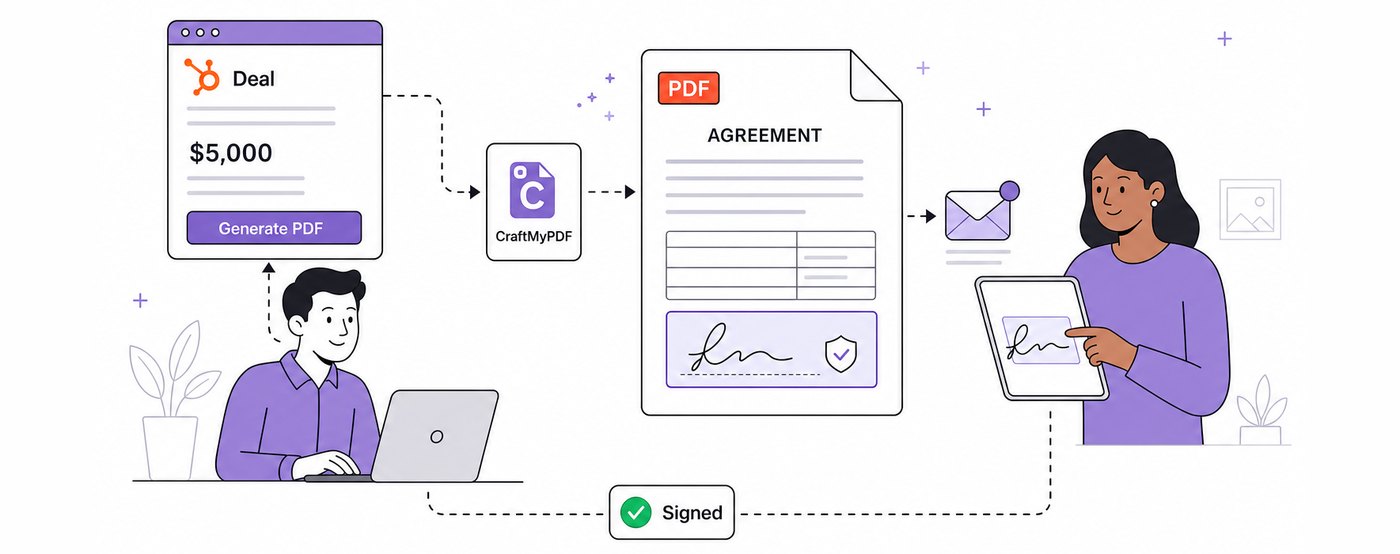
How To Add eSignatures To HubSpot Deals (Without Leaving Your CRM)
Send HubSpot deal documents for eSignature straight from the Deal record: install the CraftMyPDF app, build a signature-ready template, and track signed PDFs.
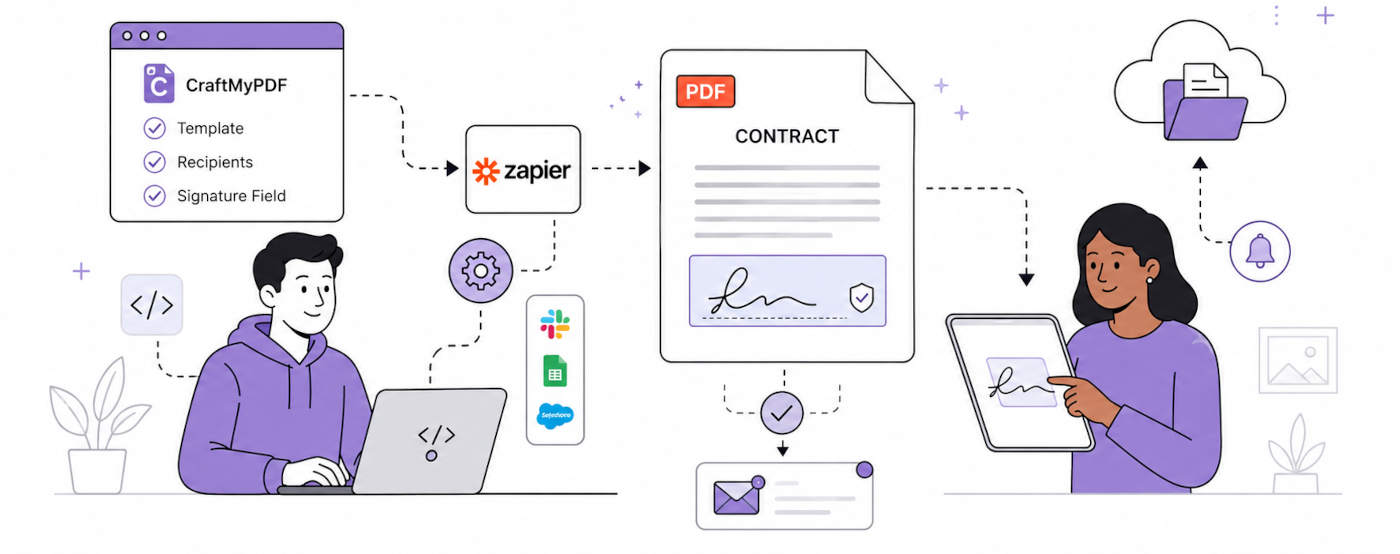
How To Automate eSignatures Using Zapier (with CraftMyPDF)
A step-by-step guide to sending contracts for eSignature automatically: build the template once, trigger it from Zapier, track signing status in CraftMyPDF.