
Reporting Automation for PDF Reports and Business Workflows
 By Jacky Tan Updated August 20, 2026
Learn how reporting automation helps you automatically generate PDF reports from spreadsheets, forms, CRMs, databases, and APIs using CraftMyPDF.
td;lr
Most teams do not struggle because they lack data. They struggle because the data is scattered across spreadsheets, forms, CRMs, dashboards, and internal tools.
Every week or month, someone still has to copy the numbers, update the layout, check the formatting, export the report, and send it to the right person.
I am Jacky, the founder of CraftMyPDF. We built CraftMyPDF to solve a simple problem: businesses often have the data ready, but turning that data into clean, branded PDF reports is still a manual and repetitive process.
That is where reporting automation helps.
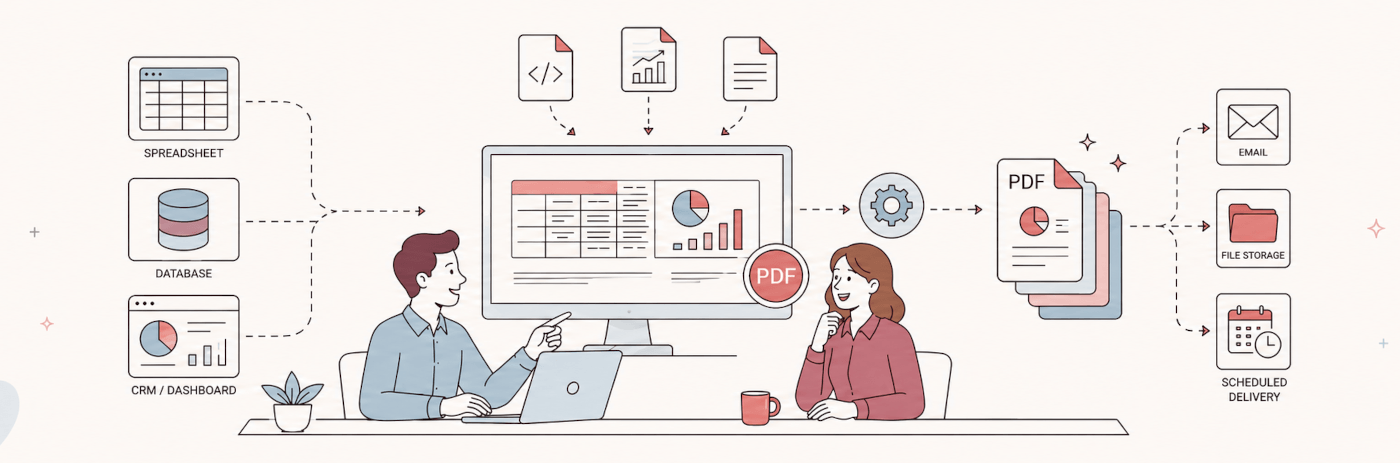
Instead of creating reports manually, you can build a workflow that takes data from your existing tools and automatically turns it into a report. For many businesses, that report still needs to be a PDF because PDFs are easy to email, print, archive, and share with clients.
In this guide, I will walk through how reporting automation works, where PDF reports fit in, and how you can use CraftMyPDF to generate PDF reports automatically from your data.
What is reporting automation?
Reporting automation is the process of automatically creating, updating, and delivering reports using data from your business systems.
For example, instead of manually preparing a monthly client report, you can set up a workflow like this:
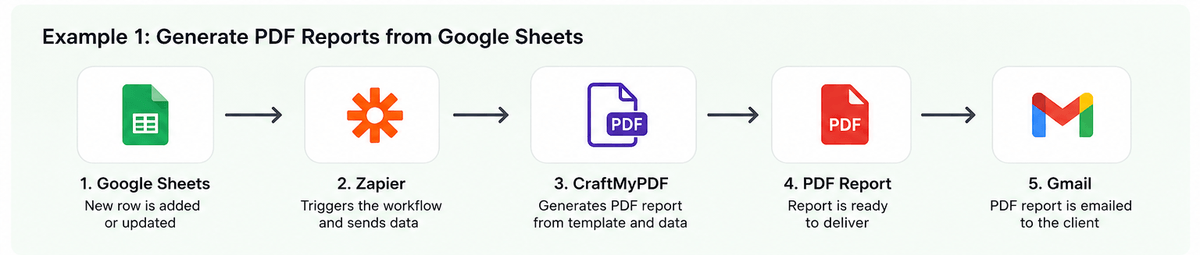
The idea is simple. Your data source holds the information, your template controls the design, and the automation workflow generates the report whenever it is needed.
In many workflows, this works like a PDF report builder: you design the layout once, connect it to your data, and generate the final report automatically.
This is especially useful for reports that follow the same structure every time, such as client reports, inspection reports, student reports, financial summaries, sales reports, invoices, certificates, or monthly performance reports.
Why reporting automation matters now
Reporting automation is part of a bigger shift in how businesses create documents.
Instead of manually preparing invoices, reports, contracts, certificates, and summaries, more teams are moving toward reusable templates, APIs, and cloud-based workflows. Businesses using automated document workflows report reducing document handling time by 60-70%, according to APITemplate’s document automation statistics article.
PDF is still a major part of that workflow. Reports may start in a spreadsheet, database, dashboard, or CRM, but the final output often needs to be a document that can be sent, downloaded, printed, or archived.
That is why reporting automation should not only be about dashboards. Dashboards are useful for analysis, but many teams still need a final report that looks professional and can be shared outside the company.
This is where automated PDF report generation becomes useful.
Why automate report generation?
Manual reporting takes more time than most teams realize.
Someone needs to collect data, clean it up, copy it into a document, format tables, update charts, export the PDF, and send it to the right person. If the report is personalized for each client, customer, student, or member, the work multiplies quickly.
Automation helps remove the repetitive parts.
Once the report template is ready, the same workflow can generate one report or thousands of reports using fresh data. This saves time, keeps the layout consistent, and reduces the chance of copy-paste mistakes.
Poor data quality is also expensive. Gartner has estimated that poor data quality costs organizations at least $12.9 million per year on average (Gartner). Reporting automation does not solve every data problem, but it does reduce one common source of mistakes: manually moving data between systems and documents.
Dashboard reporting vs PDF reporting
Dashboards are great when you need live metrics. Tools like Looker Studio, Power BI, Tableau, or internal dashboards are useful for exploring data and monitoring performance.
But dashboards are not always the best format for sharing final reports.
PDF reports are better when you need something fixed, branded, portable, and easy to send. A PDF is useful when you are sending a monthly report to a client, attaching a report to a CRM record, archiving a compliance document, or giving customers a personalized summary.
In simple terms:
Dashboards are good for analysis. PDF reports are good for delivery.
CraftMyPDF fits into the delivery part of the workflow. You can design a reusable report template, send data to it, and generate a polished PDF automatically using the PDF Generation API, Zapier, Make, n8n, Airtable, or REST API.
CraftMyPDF supports reusable templates, dynamic data, charts, QR codes, expressions, no-code integrations, API-based automation, and regional API endpoints.
How PDF reporting automation works
A typical PDF reporting automation workflow has five parts.
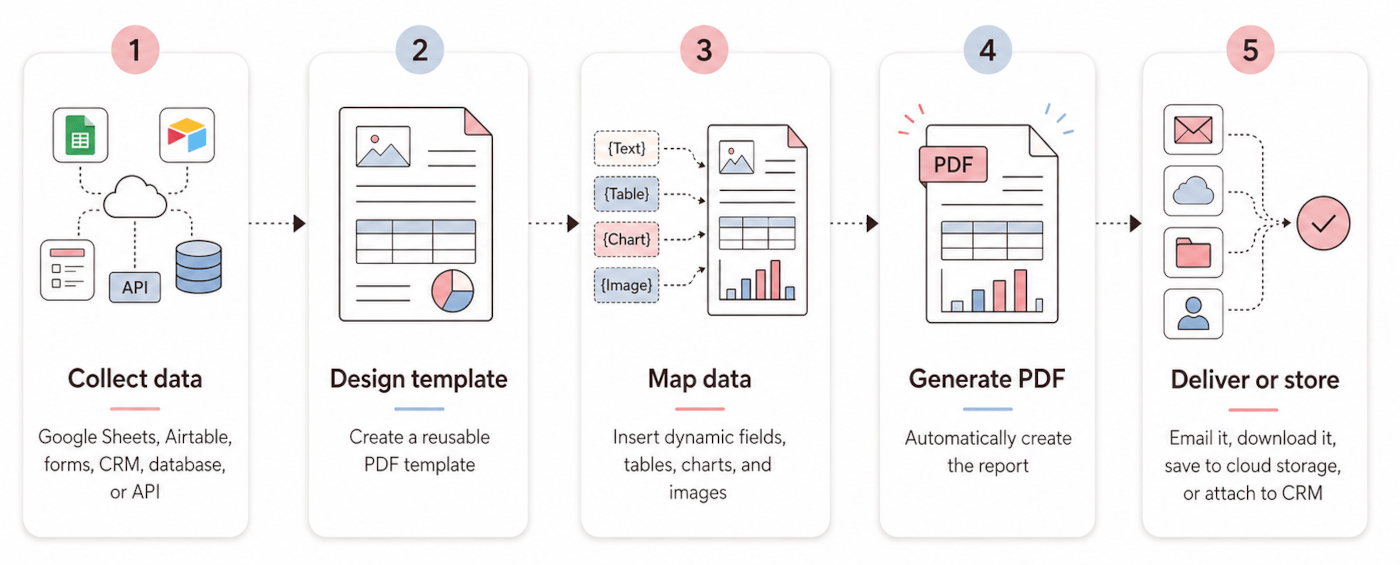
First, you need a data source. This could be Google Sheets, Airtable, Typeform, Jotform, HubSpot, your database, or your own API.
Next, you design a reusable PDF template. This is where you define the report layout, branding, tables, charts, headers, footers, and dynamic fields.
Then, your automation tool sends data to the template. The data usually comes in as JSON. For example, it may include the client name, reporting period, totals, table rows, chart values, notes, and other dynamic content.
After that, CraftMyPDF generates the PDF from the template.
Finally, the PDF can be emailed, downloaded, uploaded to cloud storage, attached to a CRM record, or saved back to your database.
The benefit of this approach is that your data and design are separated. Your data source provides the values. Your CraftMyPDF template controls the design. Your automation tool connects everything together.
Example 1: Generate PDF reports from Google Sheets
Let’s say you manage monthly reports in Google Sheets. Marketing teams, for example, might keep Google Ads data in Google Sheets alongside other campaign metrics before turning that data into a client-ready report.
Each row contains one customer’s report data: name, email, reporting period, sales total, usage numbers, notes, and maybe a few KPI values.
Instead of manually creating a PDF for each customer, you can build this workflow:
Google Sheets → Zapier → CraftMyPDF → Gmail
When a new row is added or updated, Zapier sends the row data to CraftMyPDF. CraftMyPDF generates a PDF report using your template. Then Gmail sends the PDF to the customer.
This works well for monthly client reports, student progress reports, member summaries, SaaS usage reports, or simple business performance reports.
CraftMyPDF integrates with Zapier and can be used to generate documents like reports, invoices, and packing lists from automated workflows.
Example 2: Generate PDF reports from Airtable
Airtable is often used as a lightweight database for operations, projects, inspections, and internal workflows.
For example, you may have an Airtable base for property inspections. Each record contains the property details, inspection date, inspector name, photos, checklist results, and notes.
A simple automation could look like this:
Airtable → Make.com → CraftMyPDF → Airtable attachment field
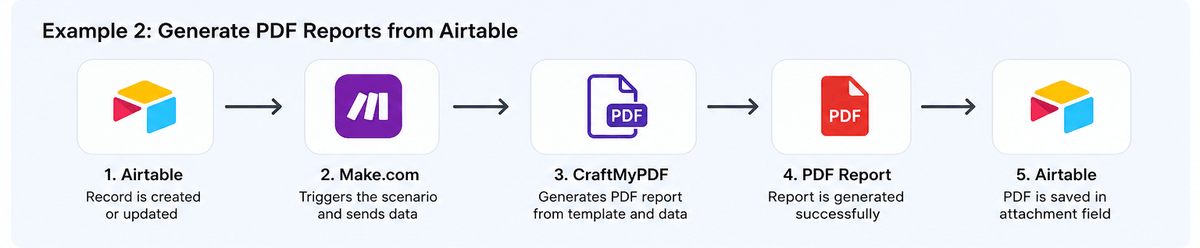
When an inspection record is marked as complete, Make.com sends the Airtable data to CraftMyPDF. CraftMyPDF generates the report, and the PDF is saved back to the same Airtable record.
This gives your team a clean, consistent PDF report without manually exporting anything.
CraftMyPDF’s Airtable extension lets users design reusable PDF templates, map Airtable fields, generate PDFs from Airtable records, and save generated PDFs back into Airtable attachment fields (CraftMyPDF.com).
Example 3: Generate reports from your own app or database
If you are building a SaaS product or internal system, you may already have the report data in your database.
In that case, you can use the CraftMyPDF API directly.
Your backend can collect the data, format it as JSON, send it to CraftMyPDF with a template ID, and receive a generated PDF. The PDF can then be stored in your system, emailed to the user, or made available as a download.
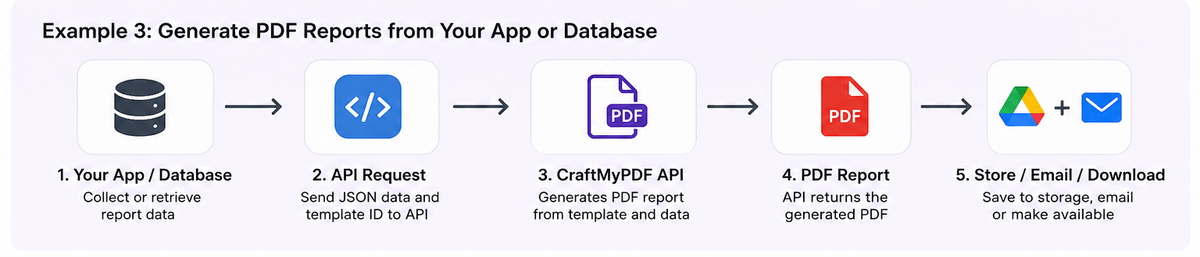
This is useful for SaaS usage reports, account summaries, financial reports, compliance documents, and customer-facing analytics reports.
CraftMyPDF’s PDF Generation API is designed to generate pixel-perfect PDF documents from reusable templates and data, with support for no-code tools like Zapier, Make, Bubble, n8n, and REST API workflows.
What should an automated PDF report include?
A good automated report should be easy to read and consistent every time.
Usually, it includes a report title, customer or client details, reporting period, summary section, tables, charts, totals, notes, and branding. Depending on the use case, you may also include page numbers, images, QR codes, signatures, or a call-to-action.
The important thing is to avoid designing every report from scratch.
Create one reusable template, connect it to your data, and let the automation workflow generate the report whenever it is needed.
When you need to change the design, you update the template once. The next reports will follow the new layout automatically.
How CraftMyPDF helps with reporting automation
CraftMyPDF helps with the PDF generation part of reporting automation.
You can use CraftMyPDF as a PDF report builder to create reusable report templates with a drag-and-drop editor, add dynamic fields, insert tables, apply formatting, and generate PDFs automatically from JSON data.
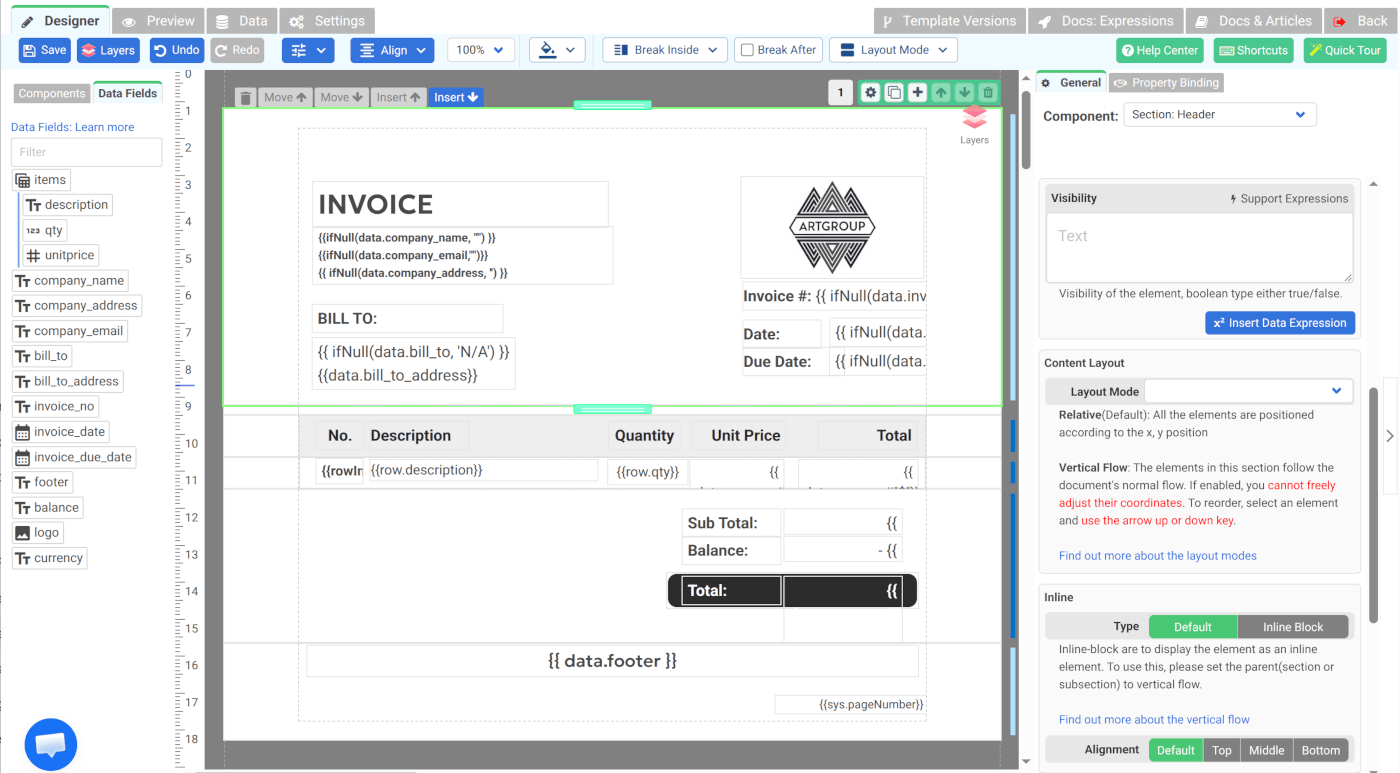
For no-code workflows, you can connect CraftMyPDF with tools like Zapier, Make.com, Airtable, and n8n. For developer workflows, you can use the PDF Generation API to generate reports from your application or backend.
CraftMyPDF also supports charts, QR codes, barcodes, dynamic images, expressions, regional endpoints, and SOC 2 Type II audited infrastructure for teams that need stronger security and operational trust.
This makes it suitable for both simple workflows, like generating a report from a spreadsheet row, and more advanced workflows, like generating reports from your application backend.
You can also explore Create PDFs from Reusable Templates if you want to build automated report generation directly into your workflow.
Best practices for reporting automation
Start with one report that is repetitive and easy to standardize. Do not try to automate every report at once.
A good first report is something you already create regularly, has a clear structure, and uses data that is already available in a spreadsheet, database, or app.
Once the structure is clear, a report builder software makes it easier to turn that layout into a reusable template for future reports.
Once the first workflow works, you can improve it by adding better formatting, charts, conditional sections, and automatic delivery.
Also, test your template with realistic sample data. Reports often break because real data is longer, shorter, missing, or formatted differently than expected.
Final thoughts
Reporting automation is not just about saving a few minutes. It is part of a larger move toward template-based, API-driven document workflows.
Manual reporting does not scale well. Every time someone copies data into a document, adjusts formatting, exports a PDF, and sends it manually, there is room for delays and mistakes.
With CraftMyPDF, you can design a reusable PDF report template, connect it to your data source, and generate reports automatically using API, Zapier, Make, Airtable, n8n, or your own backend.
Start with one recurring report, automate it, and build from there.
If this sounds like something that could help your team, feel free to give CraftMyPDF a try. You can set up your first automated PDF report in just a few minutes, and I would love to hear how it works for you.
Start generating PDFs today
Design templates in the browser and generate pixel-perfect PDFs via a simple REST API. 50 free PDFs every month, no credit card required.
Keep reading
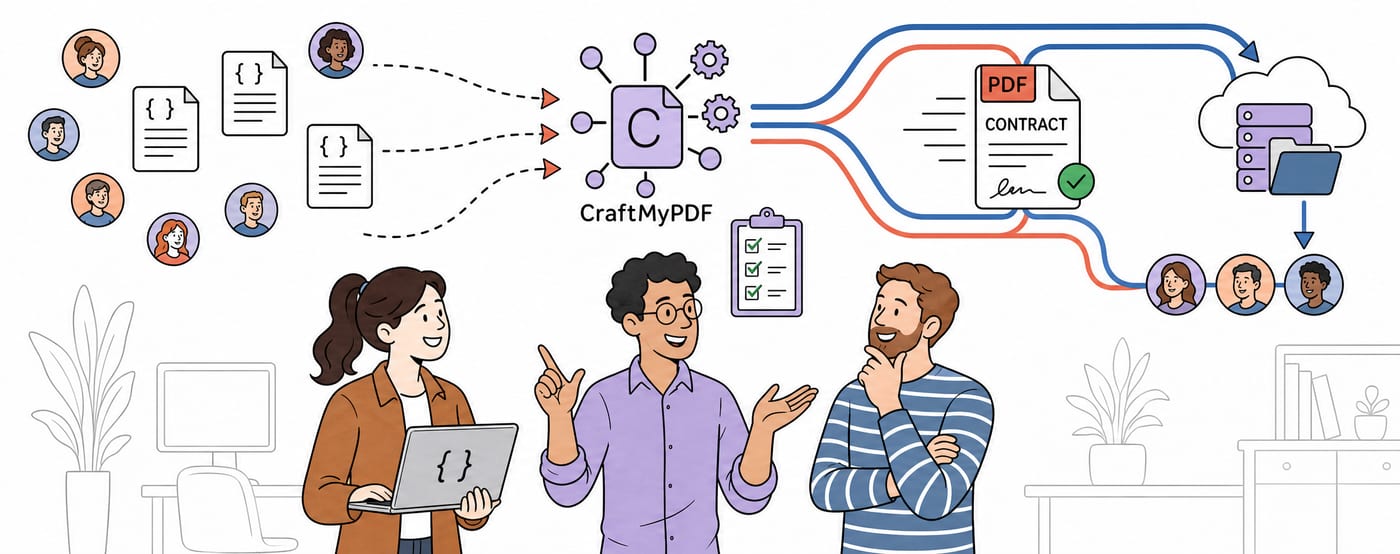
CraftMyPDF vs DocuSign vs PandaDoc: Which eSignature API Should Developers Choose in 2026?
DocuSign, PandaDoc or CraftMyPDF? Compare eSignature API pricing, webhooks, embedded signing, eIDAS levels and the steps from data to a signed PDF.
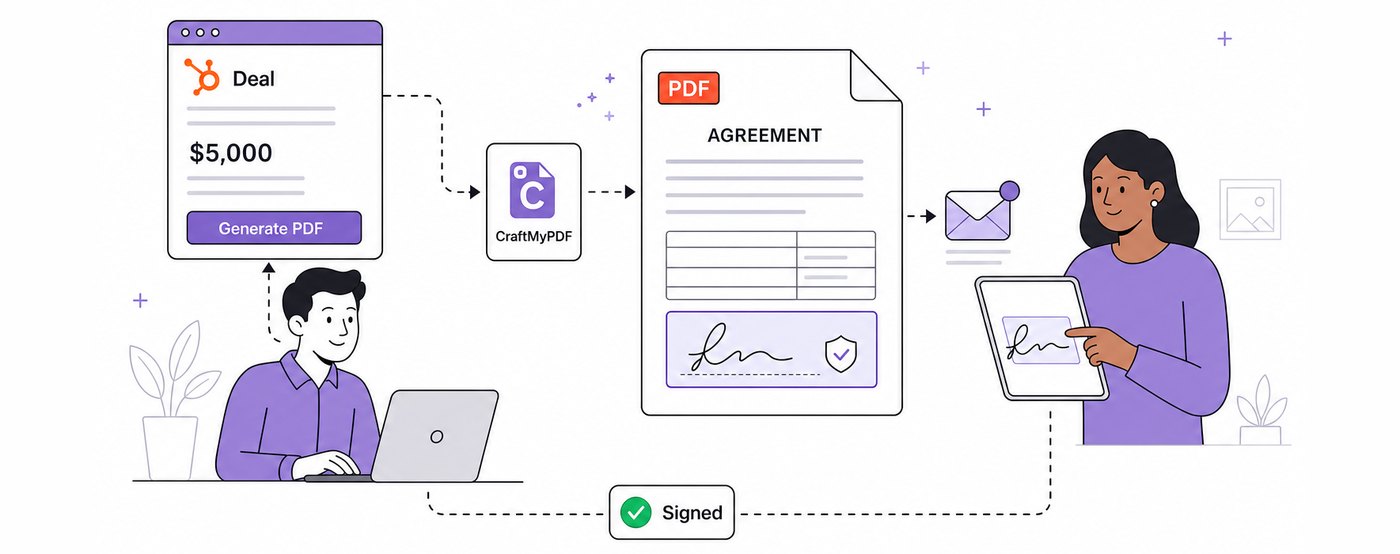
How To Add eSignatures To HubSpot Deals (Without Leaving Your CRM)
Send HubSpot deal documents for eSignature straight from the Deal record: install the CraftMyPDF app, build a signature-ready template, and track signed PDFs.
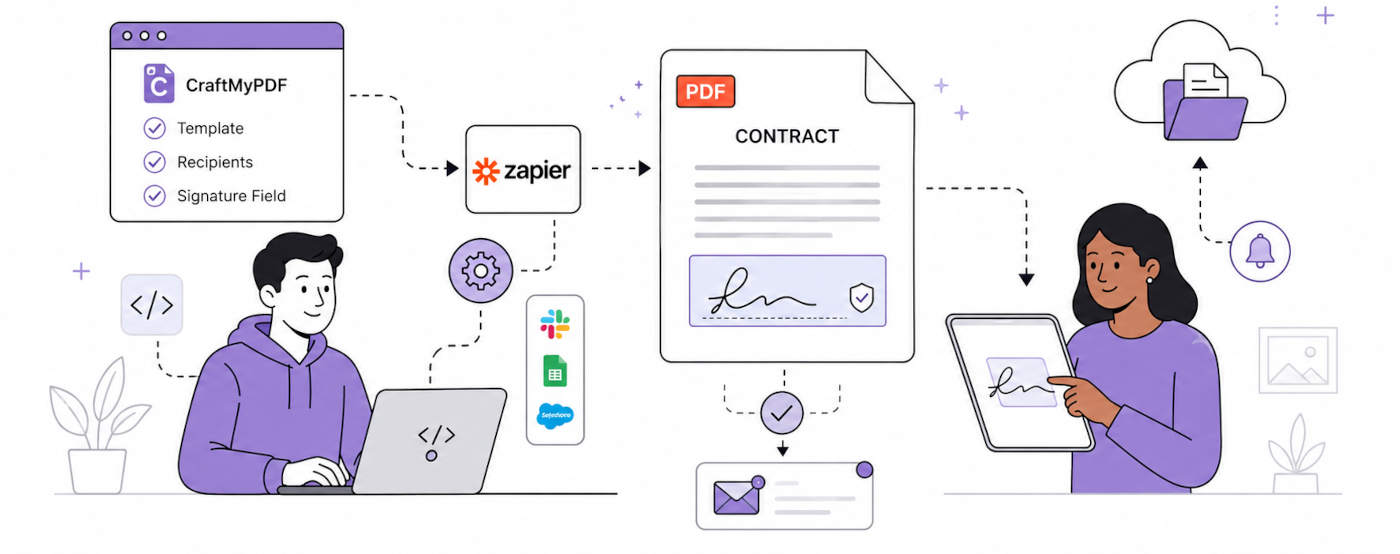
How To Automate eSignatures Using Zapier (with CraftMyPDF)
A step-by-step guide to sending contracts for eSignature automatically: build the template once, trigger it from Zapier, track signing status in CraftMyPDF.