When Google Docs PDF Automation Is Not Enough
 By Jacky Tan Updated June 11, 2026
Learn when Google Docs works for simple PDF automation, where it starts to struggle, and how CraftMyPDF helps you generate reusable, dynamic PDF documents from forms, spreadsheets, CRMs, and APIs.
tl;dr
Google Docs is a great writing tool. It is familiar, easy to use, and works well when you need to create simple documents with your team.
It is also one of the first tools many people try when they want to automate PDF generation. The workflow usually looks simple enough: create a Google Docs template, replace a few placeholders, export it as a PDF, then send it by email or upload it to Google Drive.
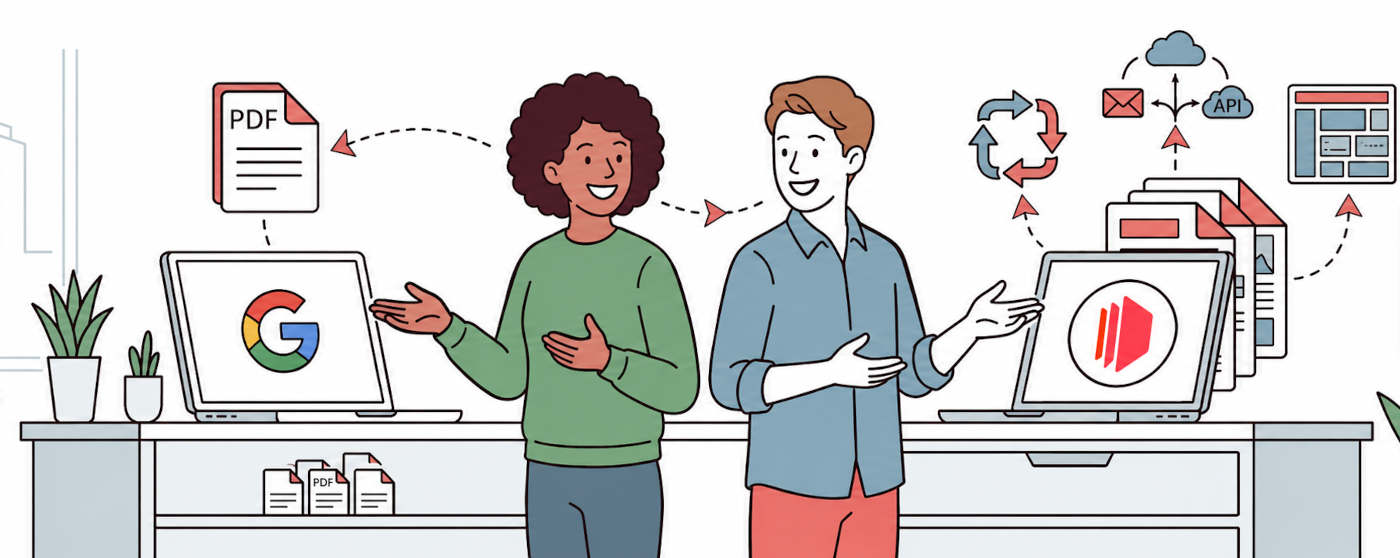
Hi, I’m Jacky, the founder of CraftMyPDF. We help businesses generate PDF documents automatically from reusable templates, APIs, and no-code tools like Zapier and Make.
And from what I have seen, Google Docs works well at the beginning. But once your PDF workflow becomes more dynamic, more branded, or more data-heavy, it can quickly become harder to maintain.
In this article, we will look at where Google Docs works, where it starts to struggle, and when it makes more sense to use a dedicated PDF generation tool like CraftMyPDF.
The usual Google Docs PDF automation workflow
Most Google Docs PDF automation starts with a very simple idea: use Google Docs as the document template, fill in the data, then export the final document as a PDF.
A typical workflow might look like this:
Google Forms, Typeform, Airtable, or a CRM sends new data into Zapier or Make. The automation then creates a Google Docs file from a template, replaces the placeholders, exports the document as a PDF, and finally sends it to the customer or stores it in Google Drive.
For simple use cases, this works fine.
If you are generating a basic letter, confirmation document, or internal report with a few fields like name, date, email, and address, Google Docs can be enough.
The problem usually starts when the document is no longer just a simple text document.
Where Google Docs works well
Google Docs is still a good option when the document is mostly text and the layout is simple.
For example, if your PDF is a simple agreement, letter, or confirmation document, and you only need to replace a few variables, Google Docs can do the job. It is easy for non-technical users to edit, and most teams already know how to use it.
It is also useful when collaboration matters more than automation. If your team needs to write, comment, and manually adjust the content before exporting the final PDF, Google Docs is a natural fit.
But PDF generation is different from document writing.
When you generate PDFs automatically, you usually care about consistency, layout, structured data, and repeatability. This is where Google Docs can start to feel limiting.
Where Google Docs starts to struggle
Google Docs was designed as a document editor, not a PDF generation engine.
That difference becomes more obvious when your documents need dynamic tables, conditional sections, exact positioning, or data from multiple systems.
Repeating data can become messy
A common example is an invoice.
At first, replacing the customer name and invoice date is easy. But what happens when the invoice has 10 line items? Or 30? What if every item has a description, quantity, unit price, discount, tax, and total?
This is where Google Docs can become awkward. It is not naturally built around structured data such as JSON arrays, loops, and dynamic rows.
For invoices, quotes, order summaries, reports, packing lists, and similar documents, you usually need a template system that understands repeating data. With CraftMyPDF, you can design reusable PDF templates and populate them with dynamic data using the drag-and-drop PDF template editor.
Conditional content is harder to manage
Many PDF documents are not static. They change depending on the data.
For example, you may want to show a “Paid” label only when an invoice has been paid. You may want to display different terms based on the customer’s country. You may want to hide empty fields, show different sections for different plans, or include special notes only when certain conditions are met.
In Google Docs, this usually requires more workarounds in your automation tool or script.
A dedicated PDF template system is better suited for this because the logic belongs inside the template. CraftMyPDF supports dynamic fields, expressions, and logic so you can create more flexible templates for automated document generation.
Pixel-perfect layout is difficult
Google Docs is great for writing, but it is not always great when the PDF needs to look exactly right.
This matters for documents like certificates, labels, forms, badges, invoices, reports, and branded proposals. A small spacing issue, page break problem, or table layout shift can make the final PDF look unprofessional.
CraftMyPDF is designed for this type of use case. You can create pixel-perfect templates with text, images, QR codes, barcodes, tables, charts, and dynamic fields. You can also try the live PDF template editor demo to see how the visual editor works.
Google Docs vs CraftMyPDF
Both tools can be used in document workflows, but they are built for different purposes.
Google Docs is a writing and collaboration tool. CraftMyPDF is built for automated PDF generation from reusable templates and structured data.
| Use case | Google Docs | CraftMyPDF |
|---|---|---|
| Writing and collaboration | Good fit | Not the main use case |
| Simple document templates | Good fit | Good fit |
| Invoices with line items | Limited | Better fit |
| Conditional content | Harder to manage | Built for dynamic templates |
| Pixel-perfect PDF layout | Limited | Better fit |
| PDF generation from JSON data | Not ideal | Designed for it |
| Zapier and Make automation | Possible | Supported directly |
| API-based PDF generation | Requires more setup | Built for API workflows |
| Bulk PDF generation | Workaround-heavy | Supported with templates |
Google Docs is a good fit for simple writing and collaboration. CraftMyPDF is a better fit when your PDFs need structured data, reusable templates, automation, dynamic content, and consistent layouts.
If your workflow is mostly manual and text-based, Google Docs may be enough. But if you are generating documents automatically from forms, spreadsheets, CRMs, or APIs, CraftMyPDF is usually a better fit.
A better way to automate PDF generation
Instead of using a word processor as your PDF generation engine, you can use a reusable PDF template.
The workflow is simple.
You design a PDF template once in CraftMyPDF. Then you connect your data source, such as Google Forms, Airtable, Typeform, HubSpot, your app, or your backend API. Every time new data comes in, CraftMyPDF generates a PDF from the template automatically.
You can build this with no-code tools like Zapier or Make. Developers can also use the PDF Generation API directly.
For example, you can create workflows like:
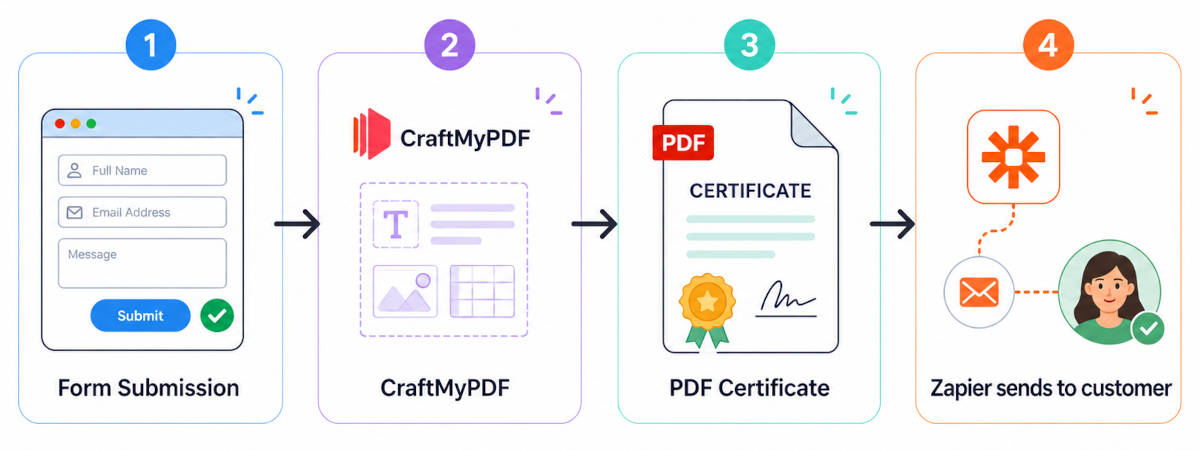
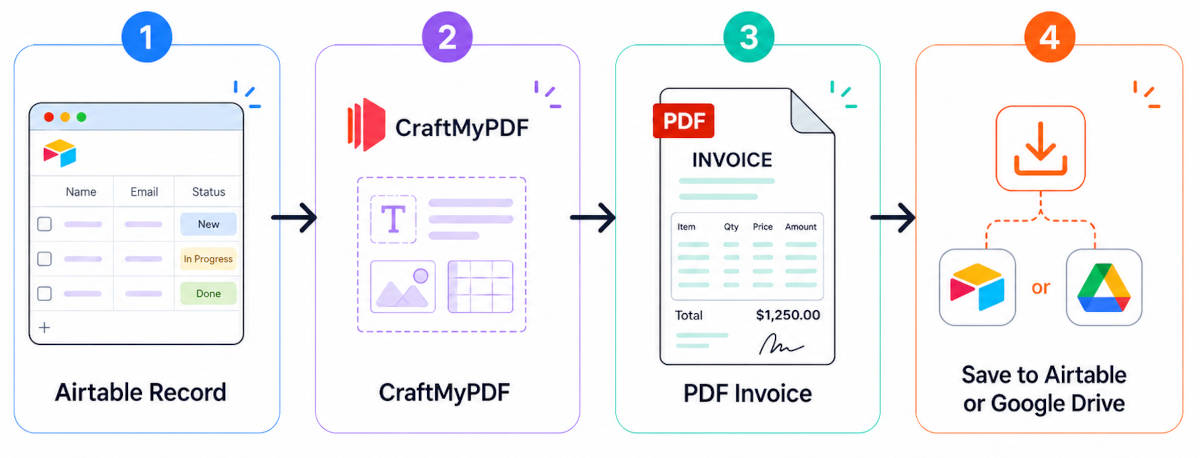
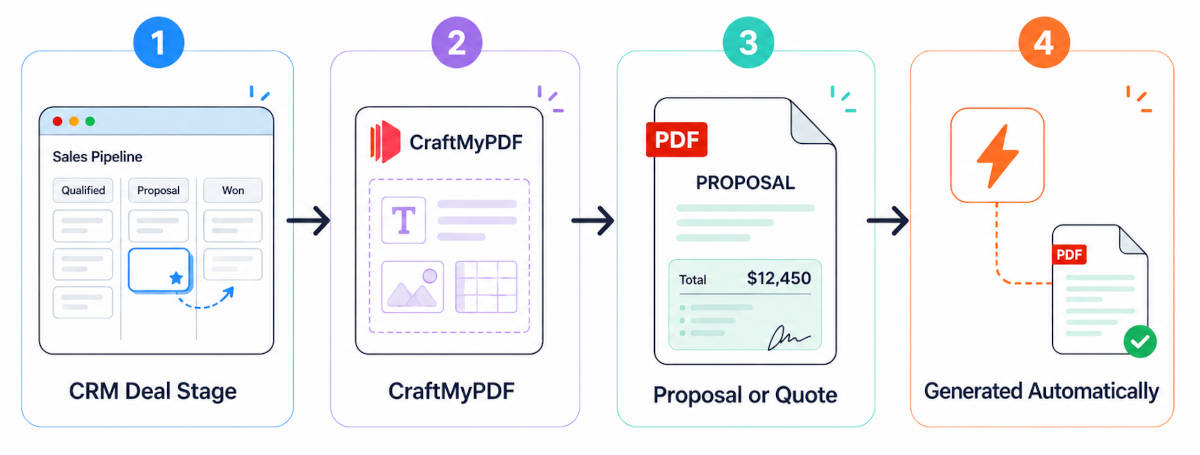
The main difference is that your PDF layout stays consistent, while the content changes based on your data.
When you should still use Google Docs
Google Docs is still a good choice when your document is mostly written content and needs human editing.
Use Google Docs when your team needs to collaborate on the wording, leave comments, make manual changes, and approve the final content before exporting it.
It is also fine for simple PDF automation where the document has only a few placeholders and the design does not need to be exact.
In other words, Google Docs is great when the document is primarily written by humans.
When you should use CraftMyPDF instead
CraftMyPDF is a better fit when the document is primarily generated by data.
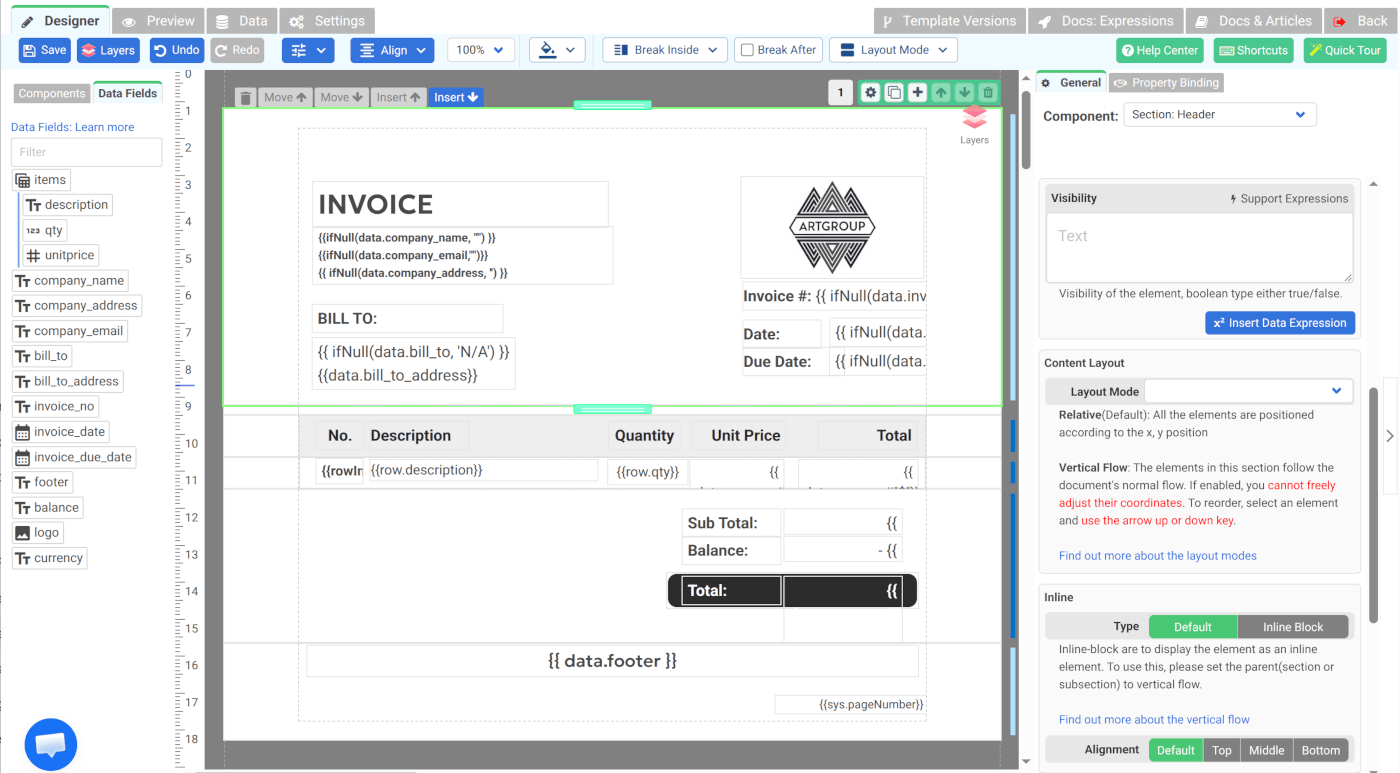
If your PDF has repeating tables, conditional sections, branded layouts, dynamic images, charts, QR codes, or data from an API, a dedicated PDF template system will save you a lot of time. And once a document is generated, some workflows need a further step—letting reviewers highlight, comment on, or mark up the file – which is where a library for pdf annotation in javascript becomes useful for handling that review layer in the browser.
It is also useful when you need to generate PDFs at scale, such as invoices, certificates, reports, labels, contracts, delivery notes, or forms. For spreadsheet-based workflows, you can also use the Bulk PDF Generator to generate many personalized PDFs from a CSV file.
The goal is not to replace Google Docs for writing. The goal is to use the right tool when your document generation workflow becomes more automated and structured.
Conclusion
Google Docs is a great tool, but it is not always the best tool for PDF generation.
It works well for simple documents, especially when humans still need to write and edit the content. But when your PDFs need dynamic data, repeating tables, conditional content, pixel-perfect layouts, or API-based automation, Google Docs can become difficult to maintain.
That is where CraftMyPDF can help.
With CraftMyPDF, you can design reusable PDF templates, connect them to your data, and generate professional PDF documents automatically through Zapier, Make, Airtable, or API.
If you are currently using Google Docs for PDF automation and starting to feel its limitations, try CraftMyPDF and build a more scalable PDF generation workflow.
Start generating PDFs today
Design templates in the browser and generate pixel-perfect PDFs via a simple REST API. 50 free PDFs every month, no credit card required.
Keep reading
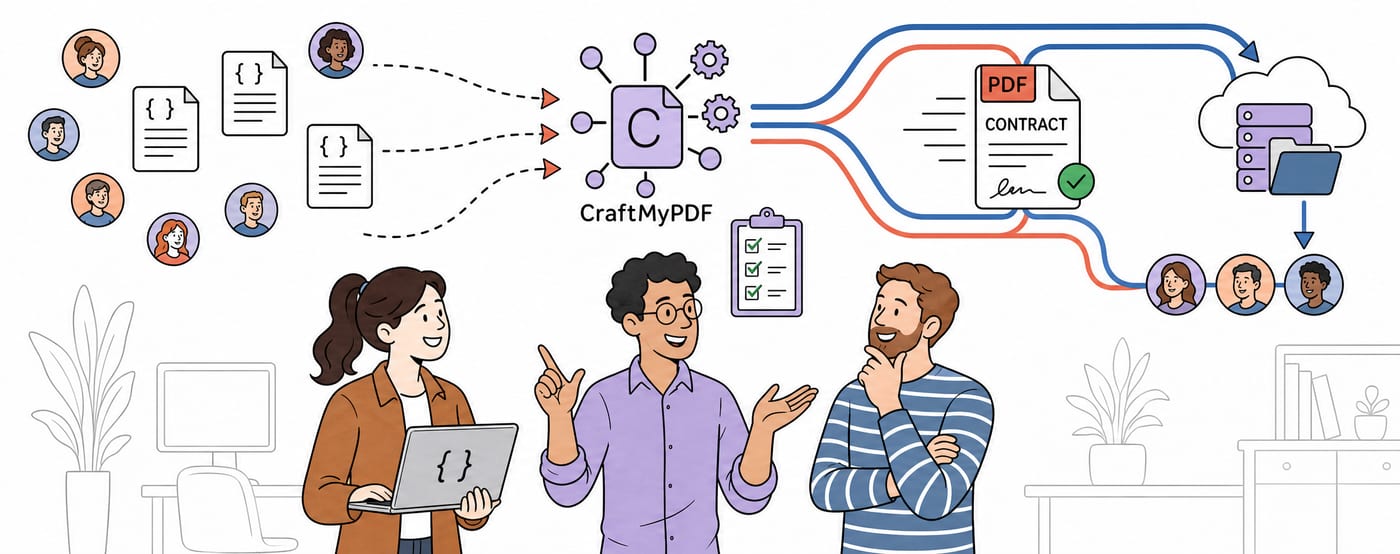
CraftMyPDF vs DocuSign vs PandaDoc: Which eSignature API Should Developers Choose in 2026?
DocuSign, PandaDoc or CraftMyPDF? Compare eSignature API pricing, webhooks, embedded signing, eIDAS levels and the steps from data to a signed PDF.
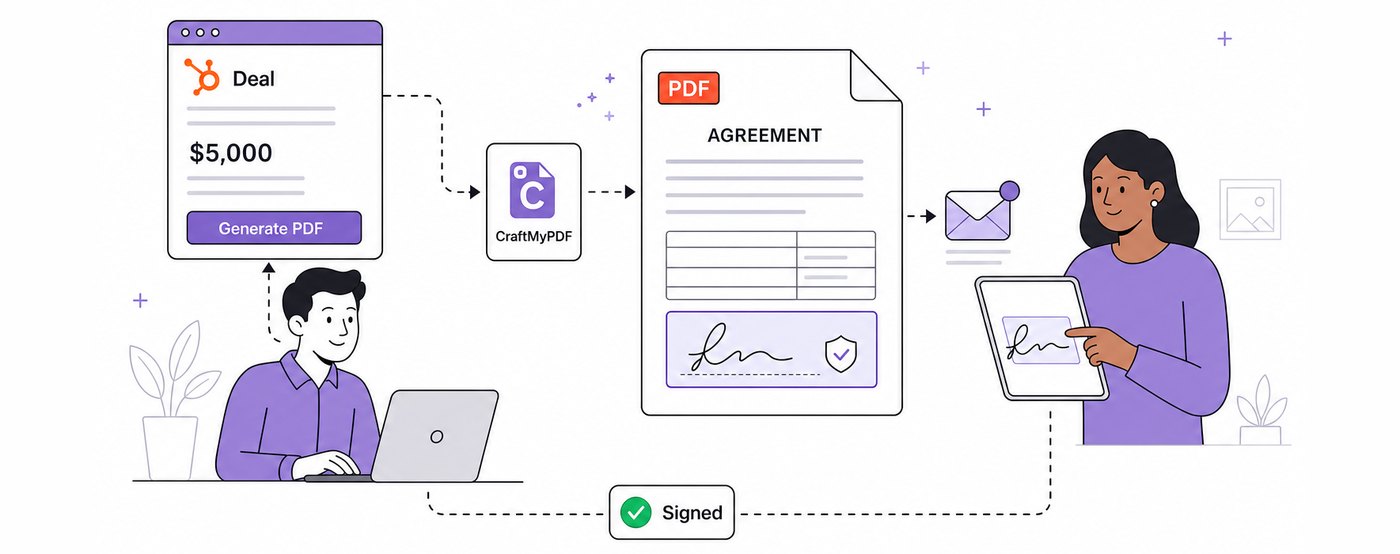
How To Add eSignatures To HubSpot Deals (Without Leaving Your CRM)
Send HubSpot deal documents for eSignature straight from the Deal record: install the CraftMyPDF app, build a signature-ready template, and track signed PDFs.
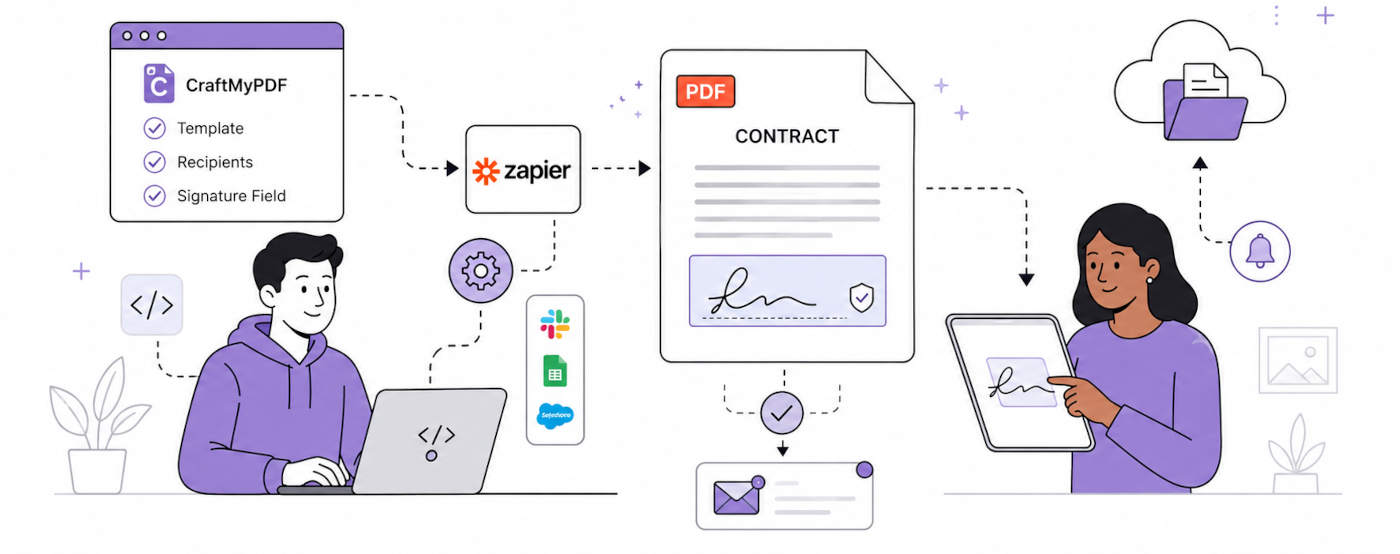
How To Automate eSignatures Using Zapier (with CraftMyPDF)
A step-by-step guide to sending contracts for eSignature automatically: build the template once, trigger it from Zapier, track signing status in CraftMyPDF.